지원 장치에 손상되거나 중복된 드라이버가 남거나, 완전 제거 후에도 Synapse가 실패하거나, Windows가 잘못된 드라이버 상태를 복원할 때 사용합니다. 성능 향상 도구가 아니며 미지원 장치를 지원하게 만들지 않습니다.
Back up profiles, record DPI and key assignments, create a Windows restore point, finish Windows Update, note the exact model and RZ number, disconnect unnecessary peripherals, and test a direct USB port before removing drivers.
Use a direct USB port without a hub.
Keep the PC connected to power.
Download the official ZIP and installer in advance.
Step by step
Synapse 클린 재설치 방법
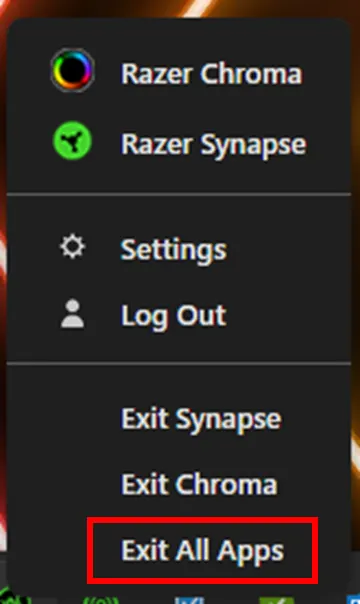
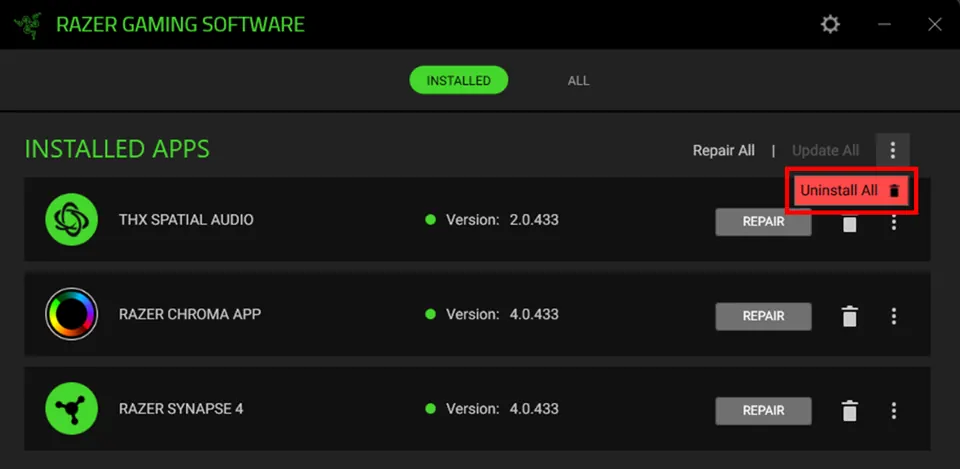
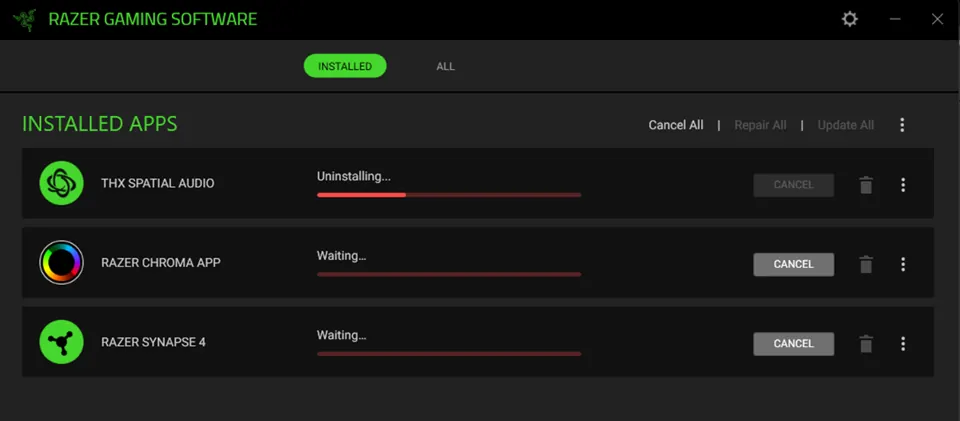
모든 Razer 앱을 종료하고 설치된 앱에서 Synapse를 제거한 뒤 모두 제거를 선택하고 재부팅합니다. 문제가 남을 때만 공식 ZIP을 풀고 관리자 권한으로 실행한 후 다시 재부팅하고 공식 Synapse 4를 설치합니다.
Do not run unofficial mirrors, registry cleaners, or guessed DriverStore deletion commands. Reconnect one supported device after installation and wait for Windows and Synapse to finish setup before restoring other peripherals or profiles.
Do not interrupt uninstall or driver cleanup.
Restart after normal uninstall and after cleanup.
Verify device detection before importing profiles.
Troubleshooting
정리 후에도 해결되지 않을 때
장치 관리자, 직접 연결 USB, Windows Update, 정확한 모델과 지원 목록, 다른 RGB 유틸리티 충돌을 확인합니다. 반복 실행하지 말고 모델, Windows 빌드, 화면과 로그를 Razer 지원에 전달하세요.
A warning icon, repeated USB disconnect sound, unknown USB device, or failure on another PC can point to Windows, cable, USB power, chipset, or hardware causes. The cleanup tool cannot move a device into a different Synapse support list.
Test another direct USB port.
Temporarily close third-party RGB utilities.
Contact Razer Support with evidence when the fault remains.
Safety
다운로드와 복구 제한
검증된 링크는 dl.razerzone.com의 DriverCleanup_22_04_2026.zip으로 연결됩니다. Synapse 설치 파일이나 범용 드라이버 팩이 아닙니다. Razer 소유 도메인만 사용하고 백업을 유지하세요.
The stable redirect can change when Razer replaces a file, so confirm the final host remains Razer-owned. Keep the restore point and backups until the device and settings survive several restarts.
Use only Razer-owned pages and download hosts.
Never trust a modified cleanup bundle.
Use Windows restore instead of improvised deletion if instability appears.
Final test
클린 재설치 최종 확인
The repair is complete only when Windows, Synapse, and the device stay stable after restart.
1
Windows starts normally
No new boot, USB, or driver warnings appear.
2
One supported device is detected
Test directly before adding hubs or extra peripherals.
3
Core controls survive restart
DPI, keys, lighting, or audio settings remain applied.
4
Profiles restore gradually
Imported settings do not recreate the fault.
If a check fails, identify compatibility, Windows, USB, other software, or hardware causes instead of repeating cleanup.