Outil de nettoyage des pilotes Razer : réinstallation propre
L’outil de nettoyage des pilotes Razer est une solution Windows de dernier recours lorsque la désinstallation normale, la réparation et le redémarrage ne corrigent pas les conflits de pilotes ou la détection. Sauvegardez les profils et créez un point de restauration.
État des sources : Page officielle, ZIP stable et installateur vérifiés le 23 juillet 2026.
Utilisez-le si un périphérique compatible garde des pilotes cassés ou dupliqués, si Synapse échoue après une désinstallation complète ou si Windows restaure un état de pilote inutilisable. Ce n’est pas un accélérateur ni un moyen d’ajouter la compatibilité.
Back up profiles, record DPI and key assignments, create a Windows restore point, finish Windows Update, note the exact model and RZ number, disconnect unnecessary peripherals, and test a direct USB port before removing drivers.
Use a direct USB port without a hub.
Keep the PC connected to power.
Download the official ZIP and installer in advance.
Step by step
Effectuer une réinstallation propre
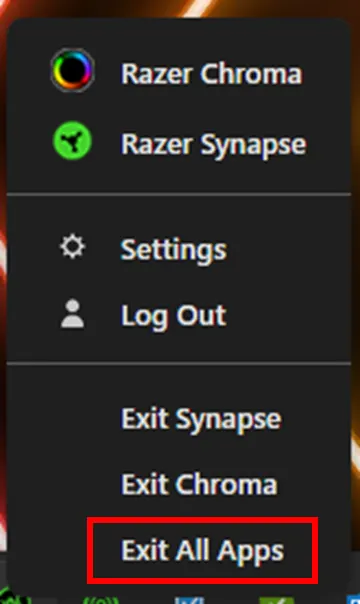
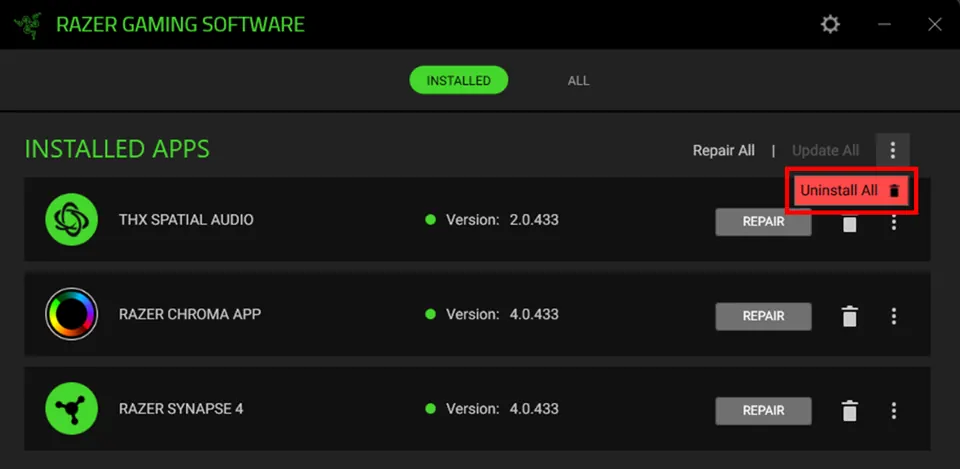
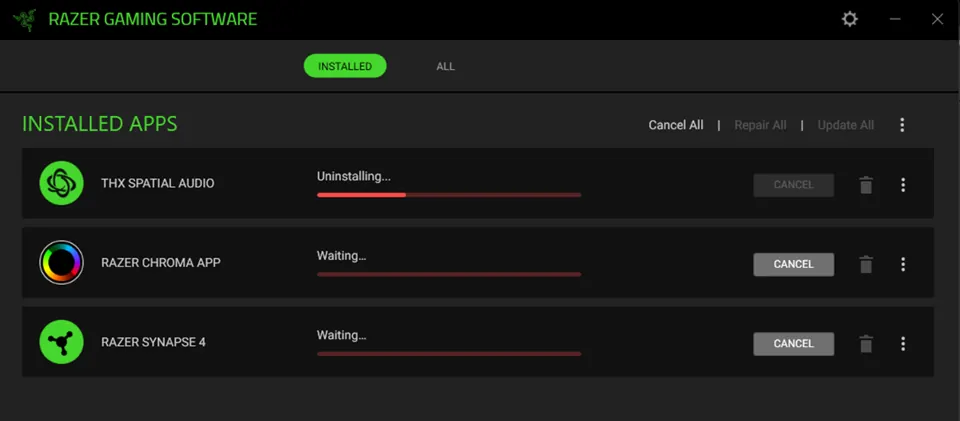
Fermez toutes les applications Razer, désinstallez Synapse dans Applications installées, choisissez Tout désinstaller, attendez puis redémarrez. Si le défaut persiste, extrayez le ZIP officiel, lancez le nettoyage en administrateur, redémarrez et installez Synapse 4 depuis Razer.
Do not run unofficial mirrors, registry cleaners, or guessed DriverStore deletion commands. Reconnect one supported device after installation and wait for Windows and Synapse to finish setup before restoring other peripherals or profiles.
Do not interrupt uninstall or driver cleanup.
Restart after normal uninstall and after cleanup.
Verify device detection before importing profiles.
Troubleshooting
Si le nettoyage ne résout rien
Contrôlez le Gestionnaire de périphériques, les ports USB directs, Windows Update, le modèle exact et la liste de compatibilité. Préparez captures et journaux pour le support Razer plutôt que de répéter le nettoyage.
A warning icon, repeated USB disconnect sound, unknown USB device, or failure on another PC can point to Windows, cable, USB power, chipset, or hardware causes. The cleanup tool cannot move a device into a different Synapse support list.
Test another direct USB port.
Temporarily close third-party RGB utilities.
Contact Razer Support with evidence when the fault remains.
Safety
Limites de téléchargement et de récupération
Le lien vérifié mène à DriverCleanup_22_04_2026.zip sur dl.razerzone.com. Ce n’est ni l’installateur Synapse ni un pack universel. Utilisez uniquement les domaines Razer et gardez vos sauvegardes.
The stable redirect can change when Razer replaces a file, so confirm the final host remains Razer-owned. Keep the restore point and backups until the device and settings survive several restarts.
Use only Razer-owned pages and download hosts.
Never trust a modified cleanup bundle.
Use Windows restore instead of improvised deletion if instability appears.
Final test
Liste de validation de la réinstallation
The repair is complete only when Windows, Synapse, and the device stay stable after restart.
1
Windows starts normally
No new boot, USB, or driver warnings appear.
2
One supported device is detected
Test directly before adding hubs or extra peripherals.
3
Core controls survive restart
DPI, keys, lighting, or audio settings remain applied.
4
Profiles restore gradually
Imported settings do not recreate the fault.
If a check fails, identify compatibility, Windows, USB, other software, or hardware causes instead of repeating cleanup.