Ferramenta de limpeza de drivers Razer: reinstalação limpa
A ferramenta de limpeza de drivers Razer é uma medida final no Windows quando desinstalação normal, reparo e reinicialização não resolvem conflitos de driver ou detecção. Faça backup dos perfis e crie um ponto de restauração.
Status da fonte: Página oficial, ZIP estável e instalador verificados em 23 de julho de 2026.
Use quando um dispositivo compatível mantém drivers quebrados ou duplicados, o Synapse falha após remoção completa ou o Windows restaura um estado de driver inutilizável. Não é um acelerador nem adiciona suporte a hardware incompatível.
Back up profiles, record DPI and key assignments, create a Windows restore point, finish Windows Update, note the exact model and RZ number, disconnect unnecessary peripherals, and test a direct USB port before removing drivers.
Use a direct USB port without a hub.
Keep the PC connected to power.
Download the official ZIP and installer in advance.
Step by step
Como fazer uma reinstalação limpa
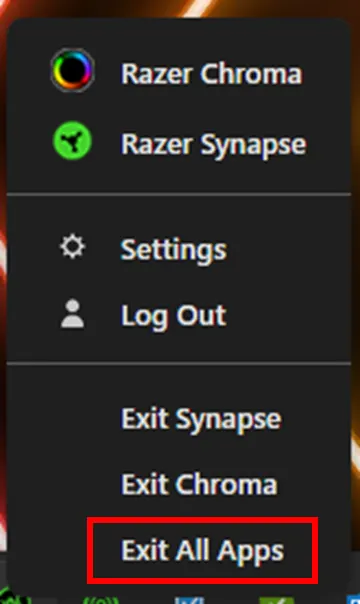
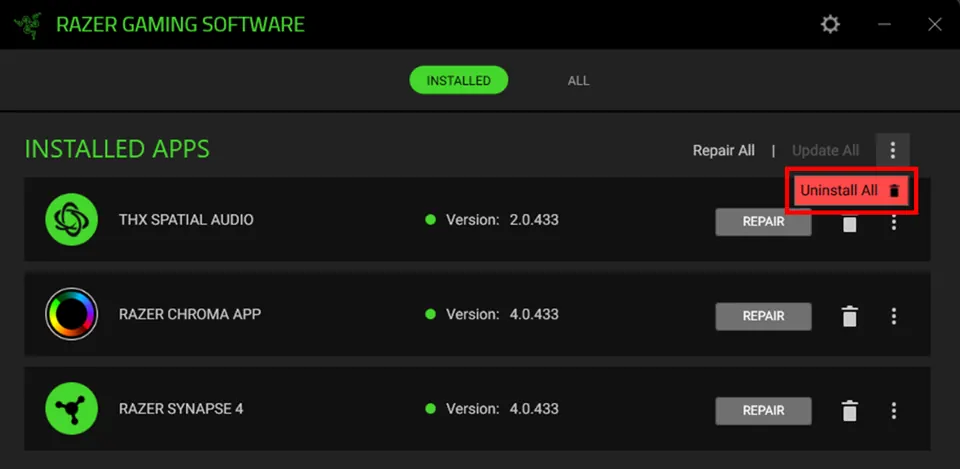
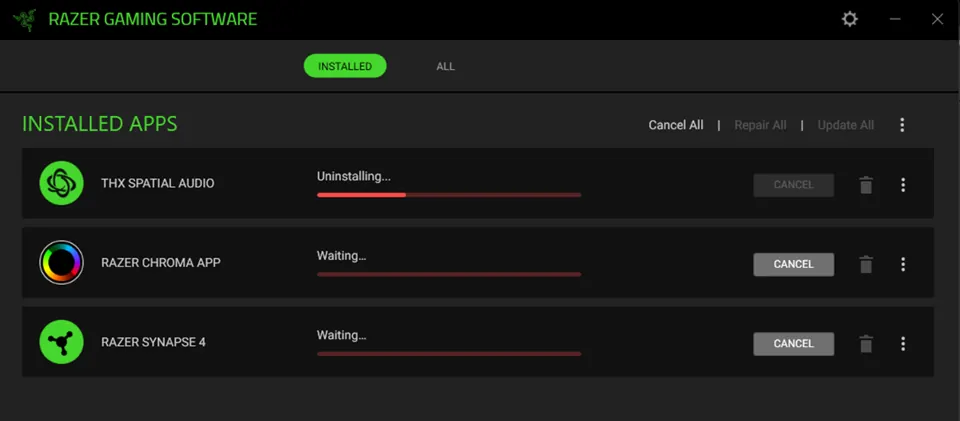
Feche todos os aplicativos Razer, desinstale o Synapse em Aplicativos instalados, escolha Desinstalar tudo, aguarde e reinicie. Se a falha continuar, extraia o ZIP oficial, execute como administrador, reinicie e instale o Synapse 4 pela Razer.
Do not run unofficial mirrors, registry cleaners, or guessed DriverStore deletion commands. Reconnect one supported device after installation and wait for Windows and Synapse to finish setup before restoring other peripherals or profiles.
Do not interrupt uninstall or driver cleanup.
Restart after normal uninstall and after cleanup.
Verify device detection before importing profiles.
Troubleshooting
Se a limpeza não resolver
Verifique Gerenciador de Dispositivos, USB direto, Windows Update, modelo exato e lista de suporte. Reúna capturas e logs para o Suporte Razer em vez de repetir a limpeza.
A warning icon, repeated USB disconnect sound, unknown USB device, or failure on another PC can point to Windows, cable, USB power, chipset, or hardware causes. The cleanup tool cannot move a device into a different Synapse support list.
Test another direct USB port.
Temporarily close third-party RGB utilities.
Contact Razer Support with evidence when the fault remains.
Safety
Limites de download e recuperação
O link verificado leva a DriverCleanup_22_04_2026.zip em dl.razerzone.com. Não é o instalador do Synapse nem um pacote universal. Use apenas domínios da Razer e mantenha backups.
The stable redirect can change when Razer replaces a file, so confirm the final host remains Razer-owned. Keep the restore point and backups until the device and settings survive several restarts.
Use only Razer-owned pages and download hosts.
Never trust a modified cleanup bundle.
Use Windows restore instead of improvised deletion if instability appears.
Final test
Checklist da reinstalação limpa
The repair is complete only when Windows, Synapse, and the device stay stable after restart.
1
Windows starts normally
No new boot, USB, or driver warnings appear.
2
One supported device is detected
Test directly before adding hubs or extra peripherals.
3
Core controls survive restart
DPI, keys, lighting, or audio settings remain applied.
4
Profiles restore gradually
Imported settings do not recreate the fault.
If a check fails, identify compatibility, Windows, USB, other software, or hardware causes instead of repeating cleanup.