The Razer Driver Clean-up Tool is a last-resort Windows utility for removing leftover Razer drivers after a normal Synapse uninstall or repair has failed. Start with the ordinary uninstall path, back up profiles, create a restore point, and run the tool only if detection, installation, or driver conflicts remain.
Source status: Official tool page, stable ZIP redirect, Synapse installer, and support steps checked July 23, 2026.
Choose your operating system and goal. Add a device name or RZ model number for an extra compatibility reminder.
Runs locally in your browser
Your recommendation will appear here
The result includes platform requirements, the reason for the recommendation, and a verified Razer source link when one is available.
Verified download
Razer Driver Clean-up Tool
2026-07-23
Official file
DriverCleanup_22_04_2026.zip
Verified size
73,179 bytes
Verified host
dl.razerzone.com
Platform
Windows, administrator rights required
Use order
Normal uninstall and restart first
Reinstall
Official Synapse 4 installer
Repair order
Normal uninstall before driver cleanup
Use the least destructive step first and test after every restart.
1
Exit and restart
Close all Razer apps and restart Windows.
2
Uninstall all
Use Windows Installed apps and the Razer uninstaller.
3
Run cleanup
Extract the official ZIP and run it as administrator only if needed.
4
Reinstall and verify
Restart, install Synapse 4, and test one device first.
Official Razer media
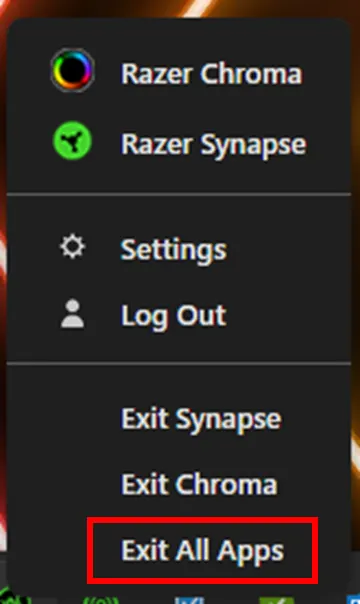
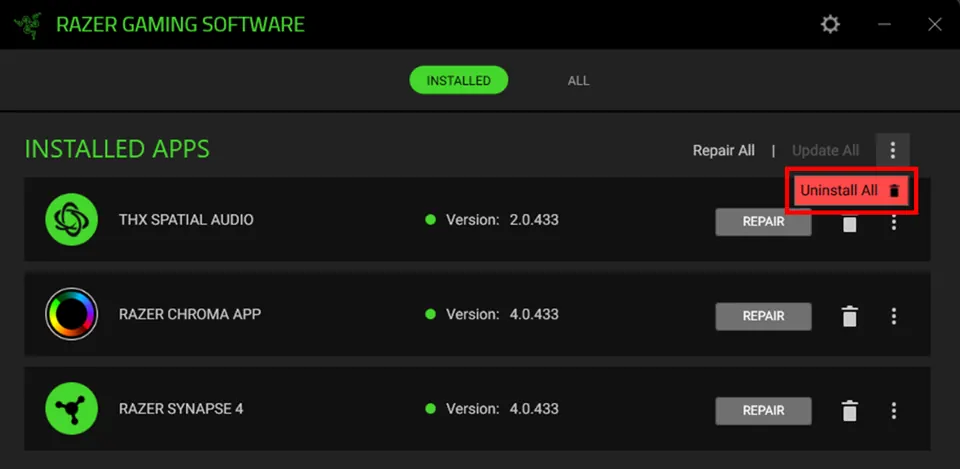
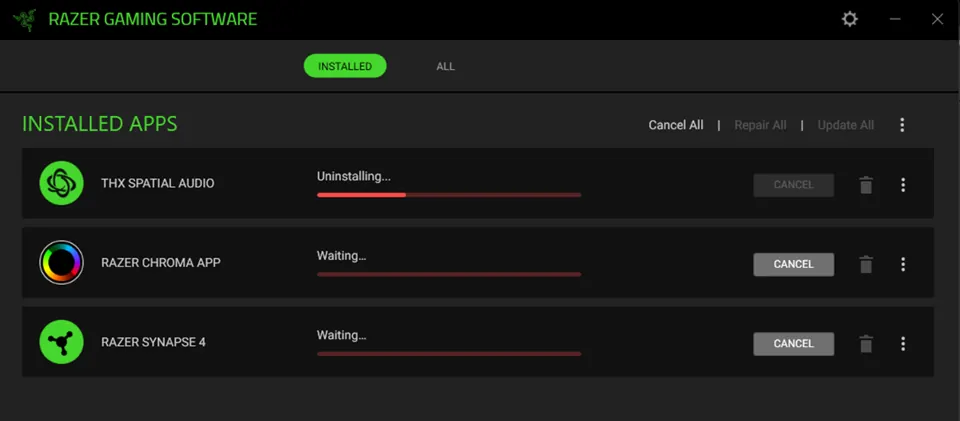
Official uninstall screens before cleanup
First-party Razer screenshots confirm the supported removal flow.
Exit all Razer appsClose Synapse and background apps before uninstalling.Razer Support sourceChoose Uninstall allUse the supported Razer Gaming Software removal path.Razer Support sourceWait for completionRestart Windows after the uninstall finishes.Razer Support source
Before cleanup
When should you use the Razer Driver Clean-up Tool?
Use it when a supported device still has broken or duplicate drivers, Synapse repeatedly fails after a complete uninstall, or Windows restores an unusable Razer driver state. It is not a performance booster and cannot add support for unsupported hardware.
Back up profiles, record DPI and key assignments, create a Windows restore point, finish Windows Update, note the exact model and RZ number, disconnect unnecessary peripherals, and test a direct USB port before removing drivers.
Use a direct USB port without a hub.
Keep the PC connected to power.
Download the official ZIP and installer in advance.
Step by step
How to run a clean Razer Synapse reinstall
Exit every Razer app, uninstall Synapse through Windows Installed apps, choose Uninstall all, wait for completion, and restart. If the fault remains, download the official ZIP, extract it, run the included cleanup file as administrator, restart again, and install Synapse 4 from Razer.
Do not run unofficial mirrors, registry cleaners, or guessed DriverStore deletion commands. Reconnect one supported device after installation and wait for Windows and Synapse to finish setup before restoring other peripherals or profiles.
Do not interrupt uninstall or driver cleanup.
Restart after normal uninstall and after cleanup.
Verify device detection before importing profiles.
Troubleshooting
What to do if cleanup does not fix Synapse
Check Device Manager, direct USB ports, Windows Update, the exact model and Synapse support list, and conflicts with other RGB utilities. If the device still fails, collect the model, serial number, Windows build, screenshots, and logs for Razer Support instead of repeating cleanup.
A warning icon, repeated USB disconnect sound, unknown USB device, or failure on another PC can point to Windows, cable, USB power, chipset, or hardware causes. The cleanup tool cannot move a device into a different Synapse support list.
Test another direct USB port.
Temporarily close third-party RGB utilities.
Contact Razer Support with evidence when the fault remains.
Safety
Download and recovery limits
The verified rzr.to link currently resolves to DriverCleanup_22_04_2026.zip on dl.razerzone.com. The tool is not a Synapse installer or a universal driver pack. Use only Razer-owned domains, keep backups, and never delete random DriverStore or registry entries.
The stable redirect can change when Razer replaces a file, so confirm the final host remains Razer-owned. Keep the restore point and backups until the device and settings survive several restarts.
Use only Razer-owned pages and download hosts.
Never trust a modified cleanup bundle.
Use Windows restore instead of improvised deletion if instability appears.
Final test
Clean reinstall acceptance checklist
The repair is complete only when Windows, Synapse, and the device stay stable after restart.
1
Windows starts normally
No new boot, USB, or driver warnings appear.
2
One supported device is detected
Test directly before adding hubs or extra peripherals.
3
Core controls survive restart
DPI, keys, lighting, or audio settings remain applied.
4
Profiles restore gradually
Imported settings do not recreate the fault.
If a check fails, identify compatibility, Windows, USB, other software, or hardware causes instead of repeating cleanup.