Razer Synapse Not Detecting Your Device? Fix It Step by Step
When Razer Synapse is not detecting a device that Windows can see, do not reinstall at random. First identify whether the failure is exact-model compatibility, USB detection, a Synapse module, a Windows driver, or the mouse, keyboard, headset, or accessory itself.
Verified guidance: Official Razer product, compatibility, detection, and cleanup sources checked July 19, 2026.
Choose your operating system and goal. Add a device name or RZ model number for an extra compatibility reminder.
Runs locally in your browser
Your recommendation will appear here
The result includes platform requirements, the reason for the recommendation, and a verified Razer source link when one is available.
Fast diagnosis
Where Razer Synapse device detection can fail
Checked Jul 19, 2026
Compatibility
The exact product or RZ number must appear on the correct Synapse 4, Mac, Web, or legacy list.
USB / wireless link
A hub, dock, receiver pairing issue, low power, or damaged port can prevent stable detection.
Windows layer
Device Manager should recognize the hardware without an unresolved warning icon.
Synapse layer
Required device modules and services must finish installing before the product appears.
Escalation
Repeated failure after direct connection, repair, and clean reinstall needs exact model and log evidence.
Four-layer check
Find the failing layer before changing software
Move left to right. Stop when one layer fails, correct that layer, and then test Synapse again.
1
Exact model
Match the full product name and RZ identifier to the official support list.
2
Physical link
Use a direct port, correct receiver or cable, adequate power, and a second known-good port.
3
Windows detection
Confirm the device appears normally in Device Manager and Windows input or audio settings.
4
Synapse services
Finish modules, repair services, and reinstall only after the first three checks pass.
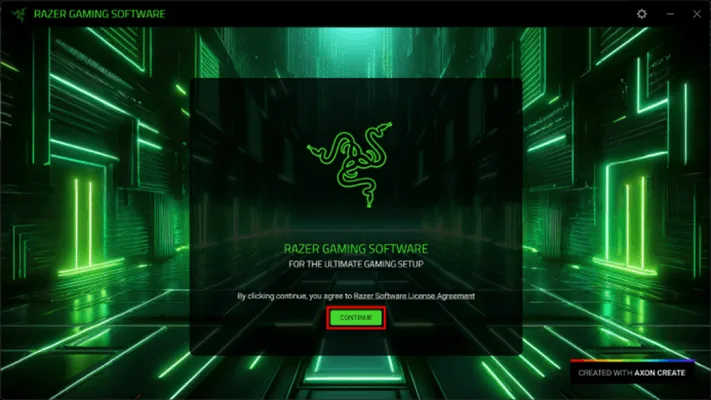
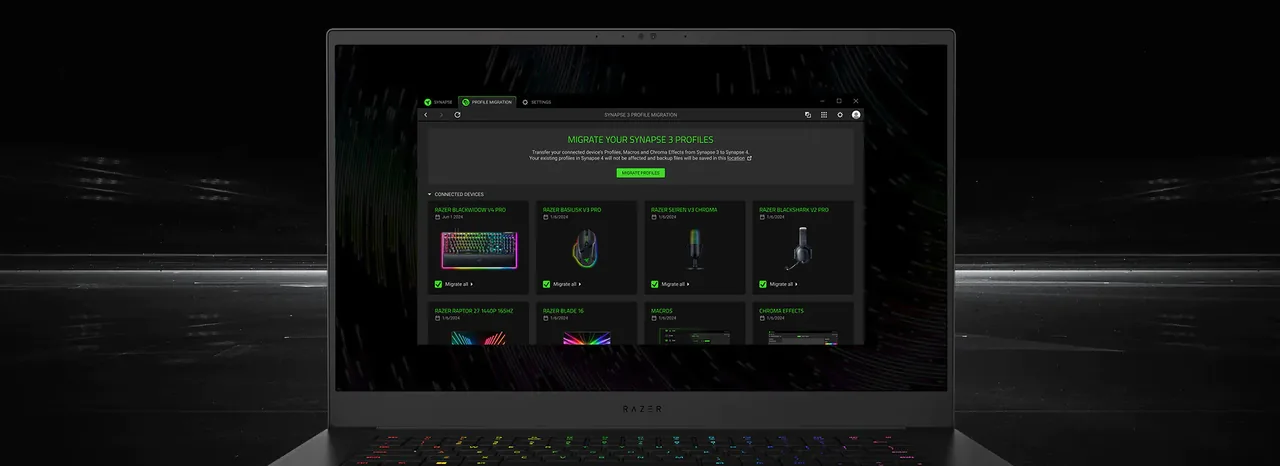
First-party visuals
Use repair and migration tools deliberately
These Razer-published screens illustrate two software stages that matter after hardware support and Windows detection are confirmed.
Repair the required Synapse componentsA missing or incomplete device module can prevent a supported product from appearing. Use the current Razer installer repair path.Razer Synapse 4Protect profiles before a clean reinstallPreserve important mappings, macros, and Chroma effects before removing old Synapse data.Razer Synapse 4
Step 1
Confirm the exact device is supported
Search the complete model name and RZ number, not only a family name such as DeathAdder, BlackWidow, Kraken, Basilisk, or Viper. One family can contain several generations assigned to different Synapse branches.
If the product is absent from the current list, repeated repair attempts will not create compatibility. Use a legacy path only when Razer assigns that exact model to it.
Read the label on the device, cable tag, receiver, or packaging.
Check Windows, Mac, and Synapse Web lists separately.
Use the supported-devices page as the source of truth for branch choice.
Step 2
Test USB, receiver, power, and Windows
Disconnect the device, restart the computer, and reconnect it directly to a known-good port. Avoid an unpowered hub or dock while diagnosing. Wireless products also need the correct receiver, charge, and pairing.
Open Device Manager and the relevant Windows input or sound panel. If Windows cannot see the hardware, solve the connection, firmware, receiver, or device problem before repairing Synapse.
Try a second direct port and, when possible, another computer.
Inspect Device Manager for warning icons or repeated reconnects.
Do not uninstall unrelated keyboard, mouse, audio, or USB devices.
Step 3
Repair Synapse modules, services, and drivers safely
Allow all requested Synapse modules to finish and restart after repair. Test with only the affected Razer device connected. A blank Synapse window is an application symptom separate from hardware detection.
Use Razer's official driver cleanup tool only when normal repair and Device Manager checks fail. Follow it with the current official installer, not an unknown mirror.
Close duplicate Synapse and installer processes.
Preserve important profiles, macros, and Chroma settings first.
Record the result of each change.
Step 4
Clean reinstall and escalation checklist
A clean reinstall is reasonable only after compatibility, direct connection, and Windows detection pass. Remove Synapse through Windows settings, restart, follow Razer's cleanup guidance when required, and reinstall from the maintained Razer URL.
If the device remains missing, collect the operating system, exact model and RZ number, connection type, Device Manager state, Synapse branch, firmware state, and steps already tried.
Separate download, install, sign-in, module, and recognition failures.
Capture exact error text and approximate time.
Contact Razer Support when the same supported device fails on a second computer.
Nine safe fixes
Razer Synapse not detecting device checklist
Apply these checks in order so each result narrows the cause instead of adding another variable.
1
Confirm the exact device is supported
Search the complete model name and RZ number, not only a family name such as DeathAdder, BlackWidow, Kraken, Basilisk, or Viper. One family can contain several generations assigned to different Synapse branches. If the product is absent from the current list, repeated repair attempts will not create compatibility. Use a legacy path only when Razer assigns that exact model to it.
2
Test USB, receiver, power, and Windows
Disconnect the device, restart the computer, and reconnect it directly to a known-good port. Avoid an unpowered hub or dock while diagnosing. Wireless products also need the correct receiver, charge, and pairing. Open Device Manager and the relevant Windows input or sound panel. If Windows cannot see the hardware, solve the connection, firmware, receiver, or device problem before repairing Synapse.
3
Repair Synapse modules, services, and drivers safely
Allow all requested Synapse modules to finish and restart after repair. Test with only the affected Razer device connected. A blank Synapse window is an application symptom separate from hardware detection. Use Razer's official driver cleanup tool only when normal repair and Device Manager checks fail. Follow it with the current official installer, not an unknown mirror.
4
Clean reinstall and escalation checklist
A clean reinstall is reasonable only after compatibility, direct connection, and Windows detection pass. Remove Synapse through Windows settings, restart, follow Razer's cleanup guidance when required, and reinstall from the maintained Razer URL. If the device remains missing, collect the operating system, exact model and RZ number, connection type, Device Manager state, Synapse branch, firmware state, and steps already tried.
5
How do I add a device to Razer Synapse?
Supported devices normally appear automatically after Windows detects them and the required Synapse module finishes. There is usually no manual add button for an unsupported or missing device.
6
Should I unplug and reconnect my Razer device?
Yes. Close Synapse, reconnect through a direct known-good port, and wait for Windows detection before reopening Synapse.
7
Why does Windows detect my mouse but Synapse does not?
The exact model may be unsupported by that branch, a module may be incomplete, services may need repair, or old driver records may conflict.
8
Will reinstalling Synapse make an unsupported device work?
No. Reinstallation cannot add compatibility. Confirm the complete model and RZ number first.
9
When should I use the Razer driver cleanup tool?
Use it after support, direct USB, Windows detection, firmware, and normal repair checks fail. Follow Razer's official instructions.
Correct the first failing layer: exact-model support, physical connection, Windows detection, and only then Synapse repair or clean reinstall.
Supported devices normally appear automatically after Windows detects them and the required Synapse module finishes. There is usually no manual add button for an unsupported or missing device.
Should I unplug and reconnect my Razer device?
Yes. Close Synapse, reconnect through a direct known-good port, and wait for Windows detection before reopening Synapse.
Why does Windows detect my mouse but Synapse does not?
The exact model may be unsupported by that branch, a module may be incomplete, services may need repair, or old driver records may conflict.
Will reinstalling Synapse make an unsupported device work?
No. Reinstallation cannot add compatibility. Confirm the complete model and RZ number first.
When should I use the Razer driver cleanup tool?
Use it after support, direct USB, Windows detection, firmware, and normal repair checks fail. Follow Razer's official instructions.