Razer Synapse Macro Guide: Create, Assign, Test, and Stop Macros
A Razer Synapse macro is a saved sequence of keyboard or mouse actions. The reliable workflow is to install the Macro module, record only the actions you need, choose deliberate delay behavior, assign the macro to a supported key or button, and test it in a harmless app before using it anywhere important.
Verified guidance: Official Razer macro creation, assignment, and Synapse 4 sources checked July 20, 2026.
Choose your operating system and goal. Add a device name or RZ model number for an extra compatibility reminder.
Runs locally in your browser
Your recommendation will appear here
The result includes platform requirements, the reason for the recommendation, and a verified Razer source link when one is available.
Quick answer
What you need before creating a Razer Synapse macro
Checked Jul 20, 2026
Software
Use the current Razer Synapse branch and install the Macro module when it is offered as an optional component.
Compatible control
The target mouse button or keyboard key must expose a customizable assignment in Synapse.
Recording choice
Record real delays, use a fixed delay, remove delays, or build a sequence according to the task.
Safe test
Test in Notepad or another harmless app before using a macro in work software or a game.
Current installer
The official Windows installer checked today is RazerSynapseInstaller.exe; Razer does not expose a simple public product version on the checked page.
Five-stage workflow
Build a macro without guessing
Complete each stage in order. Most macro problems come from skipping the module, delay, assignment, or test stage.
1
Install
Confirm Synapse recognizes the exact device and that the Macro module is available.
2
Record
Create a clearly named macro and capture only the required actions.
3
Edit
Review events, remove mistakes, and select a deliberate delay mode.
4
Assign
Bind the macro to a supported key or button with the playback mode you intend.
5
Test
Run it in a safe app, verify the stop behavior, and shorten or delete risky sequences.
Official Razer screenshots
The three Synapse macro screens that matter most
These first-party support images show the creation workflow. Interface details can change, so use them as landmarks rather than proof of a current version number.
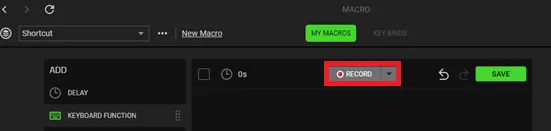
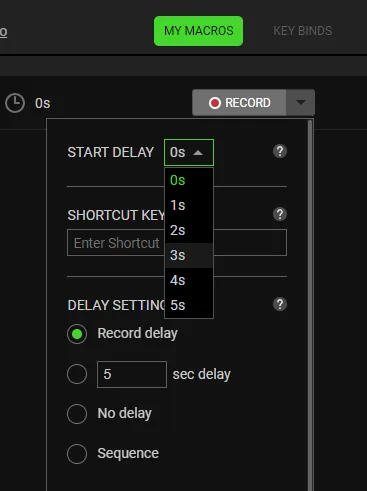
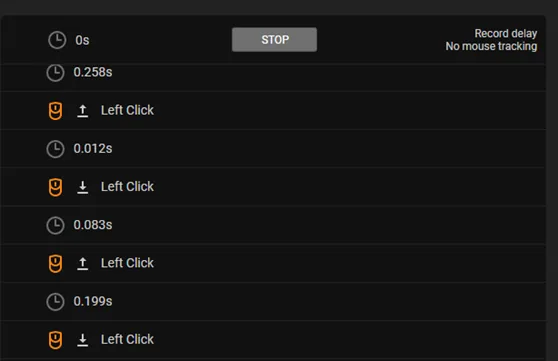
Start with a new macroOpen the Macro module, give the sequence a useful name, and use Record only when the target app is ready.Razer official screenshotChoose delay behavior deliberatelyReal delays preserve timing; fixed or removed delays can make playback faster but may also make it unreliable.Razer official screenshotReview every recorded eventRemove accidental clicks and suspiciously long or short delays before saving and assigning the macro.Razer official screenshot
Step 1
Install the Macro module and confirm device support
Open Synapse and confirm that the exact mouse, keyboard, keypad, or other assignable product appears normally. A macro cannot be assigned through Synapse when the device itself is missing, unsupported by that branch, or still waiting for a device module. Use the supported-device guide before troubleshooting the recording screen.
The Macro feature may be an optional module rather than a permanent tab in every installation. Use the Synapse module or add-on screen to install it, allow the component to finish, and restart Synapse if the tab does not appear immediately. Start with a short reversible test, and do not record passwords, payment data, destructive commands, or an unknown third-party macro file.
Verify the exact device appears in Synapse.
Install the official Macro module if the tab is missing.
Start with a short, reversible test sequence.
Never record passwords or other secrets.
Step 2
Create and record a clean Razer Synapse macro
Open Macro, select the option to create a new macro, and use a name that describes the result instead of a generic label such as New Macro. Names such as Paste ticket signature, Open editing tools, or Mouse test sequence make assignments easier to audit later.
Prepare the destination application first, then begin recording. Perform only the needed actions, stop promptly, and review every key, click, and pause. Test text with ordinary characters and verify capitalization, modifiers, punctuation, and keyboard layout. Prefer button presses over fixed pointer coordinates because display scale, window position, and resolution can change.
Use a descriptive macro name.
Keep the destination window ready before recording.
Delete accidental clicks, key presses, and idle time.
Avoid coordinate-dependent mouse movement when possible.
Step 3
Set record delay, fixed delay, no delay, or sequence playback
Delay settings decide how quickly recorded actions replay. Record delay keeps the pauses captured during recording and is the safest starting point when an application needs time between screens or commands. A fixed delay replaces each pause with one chosen interval. No delay runs actions as quickly as Synapse allows and can cause missed input when the target application cannot process events that fast.
Sequence behavior is useful when one button press should advance through actions rather than play everything at once. Confirm the selected playback mode because play once, play while held, toggle, and sequence behavior have different stop conditions. Tune one delay at a time and keep the last reliable value instead of removing every pause for speed.
Use recorded delays for the first working version.
Use fixed delays when consistent pacing matters.
Use no delay only for simple actions that tolerate rapid input.
Confirm how the selected playback mode stops.
Step 4
Assign the macro to a Razer mouse or keyboard
Return to the supported device page inside Synapse, select Customize, choose the target key or mouse button, and select the macro assignment option. Pick the saved macro and then choose the playback behavior. If the assignment option is absent, verify that the Macro module is installed and that the chosen control is actually remappable.
Use a button that is intentional but non-essential, and place experimental assignments in a separate application profile when possible. Test in Notepad or another harmless window, confirm order, duration, repeats, and stop behavior, and change only one setting per test.
Choose a non-essential test button first.
Verify the macro name and playback mode before saving.
Use an application-specific profile when available.
Test away from files, purchases, chats, or account controls.
Safety and fixes
Stop a running macro and fix common Synapse macro problems
To stop a macro, use the control implied by its playback mode: release the held button, press the assigned toggle again, finish the current sequence step, or close the target application and Synapse when input cannot be controlled safely. Before using repeat or toggle playback, test the stop action with a short harmless sequence. The Similarweb phrase “Razer Synapse how to emergency stop mid macro” belongs here as a safety FAQ, not as a separate page.
When a macro does nothing, confirm that the correct profile is active, the target key still has the macro assignment, Synapse and its device modules are running, and the destination application accepts simulated input. When timing is wrong, restore recorded delays and remove pointer-coordinate dependence. When the Macro tab is missing, repair or add the official module before reinstalling the entire application.
Games and online services can restrict automation even when Synapse can perform it. Check the rules for the specific game, tournament, workplace, or service; do not evade anti-cheat, automate unattended play, spam, or gain an unfair advantage. Back up important macros when available and record the device, button, playback mode, and expected result before repair or migration.
Release, toggle again, or finish the sequence according to playback mode.
Confirm the active profile and assignment when nothing happens.
Restore realistic delays when actions are skipped.
Respect game, service, workplace, and tournament automation rules.
Back up important mappings before repair or migration.
Final test
Razer Synapse macro acceptance checklist
A macro is ready only when its purpose, timing, assignment, stop behavior, and allowed context are all clear. Run this short acceptance test before relying on it.
1
Purpose is narrow and reversible
The macro performs one clearly named task, contains no secrets, and can be tested without changing important data.
2
Recorded events are reviewed
Every key press, key release, mouse action, and delay is intentional. Accidental focus clicks and idle time are removed.
3
Timing is reliable
The target application consistently receives every action. Faster playback is accepted only after repeated safe tests.
4
Assignment and stop behavior are known
The correct device profile, button, macro, and playback mode are visible, and the user knows how to stop it immediately.
5
The use is permitted
The macro follows the rules of the game, service, workplace, or event where it will run.
If any check fails, shorten the sequence, restore delays, change the assignment, or do not use the macro in that context.
Install the Macro module, open Macro, create and name a new sequence, record the required actions, review delays and events, save it, then assign it to a supported device control.
How do I assign a macro to a Razer mouse or keyboard?
Open the recognized device in Synapse, choose Customize, select a remappable button or key, choose the macro function, select the saved macro and playback mode, then test it safely.
How do I emergency stop a Razer Synapse macro mid-playback?
Release the button for while-held playback, press the assigned control again for toggle playback, or close the target application and Synapse if input becomes unsafe. Test the stop method before using repeats.
Why is the Macro tab missing in Razer Synapse?
The Macro module may not be installed. Add or repair the official module, let installation finish, restart Synapse, and confirm the current device is recognized.
Why does my macro skip keys or run too fast?
Restore recorded delays or add a fixed delay. No-delay playback can send events faster than the target application can process them.
Are Razer Synapse macros allowed in games?
That depends on the specific game, service, league, or tournament rules. Do not use macros to evade anti-cheat controls, automate unattended play, or gain an unfair advantage.