Razer Synapse Profiles: Create, Switch, Export, Import, and Migrate
Razer Synapse profiles store device-specific settings such as button assignments, sensitivity stages, lighting choices, and linked applications. The safest workflow is to create one clearly named profile per use case, verify which device owns it, link only the applications that need it, export a backup before repairs or migration, and test the imported profile before deleting the original.
Verified guidance: Official Razer profile export, import, switching, and Synapse 4 download sources checked July 22, 2026.
Choose your operating system and goal. Add a device name or RZ model number for an extra compatibility reminder.
Runs locally in your browser
Your recommendation will appear here
The result includes platform requirements, the reason for the recommendation, and a verified Razer source link when one is available.
Quick answer
What a Razer Synapse profile can and cannot store
Checked Jul 22, 2026
Scope
Profiles belong to a specific supported Razer device and can store mappings, performance settings, lighting, and other options exposed for that device.
Best naming rule
Use device + game or task + purpose, such as DeathAdder V3 - Valorant - Low DPI, so the active profile is obvious.
Automatic switching
A profile can be associated with a game or application, but switching depends on the linked executable launching normally and Synapse running.
Portable backup
Use Synapse Export to create a local profile file before reinstalling, resetting, repairing, or moving to another PC.
Version boundary
Synapse 3 and Synapse 4 do not guarantee perfect one-click migration for every device or setting; verify every imported assignment and sensitivity value.
Current installer
The official Synapse 4 Windows file resolved to RazerSynapseInstaller.exe (14,919,368 bytes) on July 22, 2026. Razer did not expose a public semantic product version.
Reliable workflow
Manage profiles in six controlled steps
Treat a profile like a small configuration backup. Naming and verification prevent most accidental overwrites.
1
Identify
Confirm the exact device and current Synapse branch before editing.
2
Create
Add a profile and give it a specific, readable name.
3
Configure
Set buttons, DPI, lighting, calibration, or other supported options.
4
Link
Associate the correct game or application only when automatic switching is useful.
5
Export
Save a backup before repair, reset, migration, or major changes.
6
Verify
Import or switch, then test every important control before deleting anything.
Official Razer screenshots
Export, import, and switch profiles without guessing
These first-party support screenshots show the relevant controls. Interface details may move, so follow the labels and verify the selected device and profile.
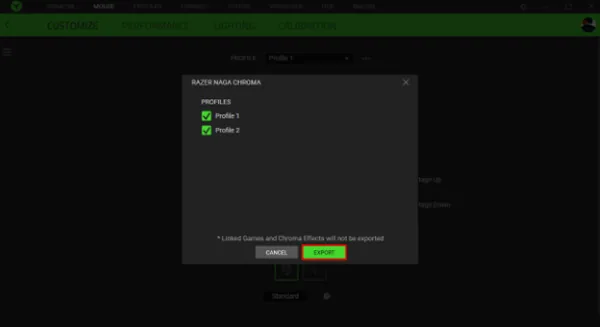
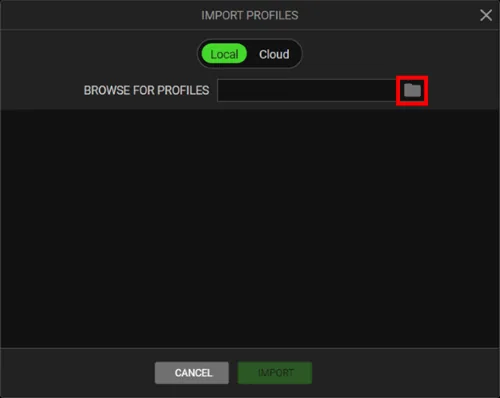
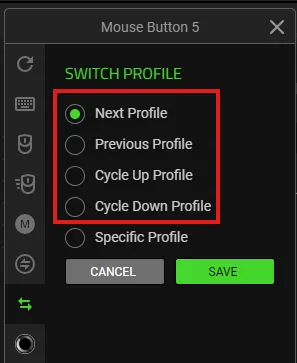
Export the selected profileChoose only the profiles you intend to back up and save the file somewhere outside the Synapse installation folders.Razer official screenshotImport a trusted profile fileReview the profiles listed in the import pane before applying them to the supported device.Razer official screenshotAssign profile switchingA supported button can cycle profiles, move to the next or previous profile, or select a specific profile.Razer official screenshot
Profile basics
What Razer Synapse profiles actually control
A profile is not a universal account snapshot. It is a named configuration attached to a particular device inside Synapse. A mouse profile may hold DPI stages, polling options, button mappings, calibration, lighting, and linked-game behavior, while a keyboard profile may hold key assignments, lighting, gaming-mode choices, and shortcuts. The available fields depend on the product and the Synapse branch.
Separate profiles by a decision you can recognize later: one game, one work application, one accessibility setup, or one testing state. Avoid names such as Profile 1 or New Profile. Clear names reduce the chance of exporting the wrong configuration, switching during play, or overwriting a setup during troubleshooting.
Create a separate profile only when settings meaningfully differ.
Keep a known-good default profile with conservative settings.
Do not assume cloud sign-in replaces a local export.
Create and link
Create, rename, duplicate, and link a profile
Open the device tile in Synapse and locate its profile selector or profile management menu. Create a profile, rename it immediately, then configure the device. If a duplicate option is available, duplicate a known-good profile before experimenting instead of rebuilding every assignment from scratch.
Linking a game or application can make Synapse select the profile when that executable is active. Link the real executable, not only a launcher, and test focus changes between the game and desktop. If automatic switching is inconsistent, remove duplicate links, confirm Synapse is running, and use manual switching until the executable path is stable.
Use device-game-purpose names.
Link only the executable that owns the desired settings.
Test switching while moving between the app and desktop.
Switch profiles
Switch profiles manually or with a device button
The profile selector is the safest place to confirm the active configuration. Some supported devices also allow a remappable control to use Switch Profile. Depending on the device and Synapse version, the action may cycle profiles, select the next or previous profile, or open a specific profile.
Before assigning a profile-switch button, preserve an easy way to navigate the device. Do not replace every primary click or essential key during testing. Switch once, confirm the visible profile name, test DPI and mappings in a harmless application, and learn how to return to the default profile.
Keep one safe default profile.
Test the switch action outside a competitive game.
Confirm the active profile after waking or reconnecting the device.
Export and import
Export a backup and import it safely
Use the device profile menu and choose Export. Select the intended profile or profiles, save the exported file to a normal documents or backup folder, and include the device model and date in the filename. Keep the export outside Synapse program folders so an uninstall or cleanup does not remove it.
For Import, use a file you created or obtained from a source you trust. Review the listed profiles before importing, avoid replacing a known-good setup without a backup, and verify every button, sensitivity stage, lighting effect, and linked application afterward. Imported files are configuration data, not proof that a device or feature is compatible.
Export before reinstalling or resetting Synapse.
Keep the original file until the imported profile passes testing.
Avoid unknown profile downloads that request unrelated software.
Migration
Move profiles from Synapse 3 to Synapse 4 carefully
Migration is a compatibility check, not just a file transfer. Confirm the exact device is supported in Synapse 4, export what the older branch allows, install the current official Synapse 4 package, then recreate or import settings in small groups. Do not uninstall the working branch until you have recorded important mappings, DPI values, lighting choices, and linked applications.
After migration, compare the old and new configuration device by device. Module names, available effects, profile storage, and button choices can differ. A setting that appears imported may still behave differently, so test normal use, sleep and wake, reconnect, application switching, and a full reboot.
Record critical values before migration.
Move one device or profile group at a time.
Keep exports and screenshots until the new setup is stable.
Troubleshooting
Fix profiles that disappear, fail to switch, or import incorrectly
If a profile is missing, first confirm the correct account, device, and Synapse branch. Reconnect the device, let modules finish loading, and check whether a local profile is selected. If a linked game does not trigger a profile, verify the executable path and remove competing links. If import fails, use a fresh export from the same branch when possible and avoid renaming or modifying the file contents.
When the entire device is absent, profile repair is the wrong first step. Use the device-detection guide, update or repair Synapse from official sources, and confirm support for the exact model. For repeated corruption, export good profiles, document settings, perform the narrowest official repair or cleanup procedure, then import and verify without immediately deleting the backup.
Confirm account, device, and Synapse branch.
Check linked executable paths and duplicate associations.
Repair device detection before repairing profiles.
Retain backups until several restarts pass.
Final test
Razer Synapse profile acceptance checklist
A profile is ready only when identity, settings, switching, backup, and recovery are clear.
1
The profile name is specific
The device, game or task, and purpose are recognizable without opening every setting.
2
Important controls are verified
Buttons, keys, DPI stages, lighting, and linked applications behave as expected.
3
Switching is predictable
Manual, automatic, or button-based switching selects the intended profile and can return to default.
4
A backup exists
A current export is stored outside Synapse program folders with a useful filename.
5
Migration is reversible
The old settings or branch remain available until the new profile passes repeated tests.
If any check fails, keep the original profile, correct the name or link, export again, and test the smallest change before proceeding.
Related setup
Prepare Synapse and the device before profile changes
Synapse manages profiles through its own device and account data. Do not rely on manually copying an internal program folder. Use the official Export control to create a portable backup file.
How do I export and import Razer Synapse profiles?
Open the supported device, use the profile menu, choose Export, select the profiles, and save the file. On the destination setup, choose Import, review the listed profiles, apply them, and test every important setting.
Can I link a Razer Synapse profile to a game?
Yes, when the device and Synapse branch support linked applications. Link the actual game executable and test whether focus changes trigger the intended profile.
Can I switch profiles with a mouse or keyboard button?
Many supported devices expose a Switch Profile assignment. Available actions vary, so confirm whether the control cycles, moves next or previous, or selects a specific profile.
Do Synapse 3 profiles automatically move to Synapse 4?
Do not assume complete automatic migration. Export or document settings, confirm device support, move configurations in small groups, and verify every assignment and sensitivity value.
Are downloaded Chroma profiles the same as device profiles?
Not always. Chroma lighting effects and device configuration profiles can use different import workflows. Treat third-party downloads as untrusted until the file type, source, and required software are clear.