If your Razer mouse has a DPI up/down pair or a DPI cycle button, you can usually switch between its stored sensitivity stages without opening Razer Synapse. The exact button layout varies by model, so use the physical control first, then use Synapse when you need exact numbers, named stages, profiles, or on-the-fly sensitivity.
Verified Aug 22, 2026: Razer manual-DPI, Synapse Sensitivity, On-the-fly sensitivity, product, and maintained-download sources were checked. This guide does not claim a universal DPI range for every mouse.
Choose your operating system and goal. Add a device name or RZ model number for an extra compatibility reminder.
Runs locally in your browser
Your recommendation will appear here
The result includes platform requirements, the reason for the recommendation, and a verified Razer source link when one is available.
Quick answer
What you can change without Razer Synapse
Checked Aug 22, 2026
DPI up/down
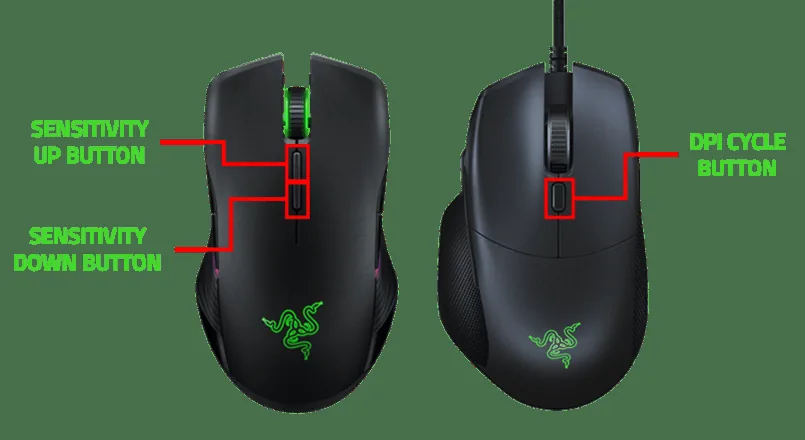
Some Razer mice have separate sensitivity-up and sensitivity-down buttons. Press the appropriate button to move through the device's stored stages.
DPI cycle
Other models use one DPI cycle button. Each press moves to the next stored stage, so the result is a preset change rather than a typed number.
What the light means
A status light or stage indicator can show that a setting changed, but the color pattern and number of stages depend on the exact mouse.
When Synapse helps
Use Synapse Sensitivity Stages for exact values, stage order, profiles, and button remapping. Use On-the-fly sensitivity only when the device and current Synapse path expose it.
Current download boundary
The official Razer Windows installer path was checked on Aug 22, 2026. The public product page did not expose a new simple application version, so this guide does not invent one.
Three-step workflow
Change the setting without guessing
Start with the least invasive control. If the physical button does not exist or does not produce the result you need, move to the exact Synapse path instead of repeatedly pressing a button whose behavior is unknown.
1
Find
Look for a DPI up/down pair or a DPI cycle button near the scroll wheel and confirm the exact model.
2
Switch
Press the button once, move the pointer in a safe app, and note the stage or indicator change.
3
Verify
If you need a precise value, profile, or remapped button, open Synapse and verify the supported device path.
DPI visual references
Physical buttons and Synapse controls are different paths
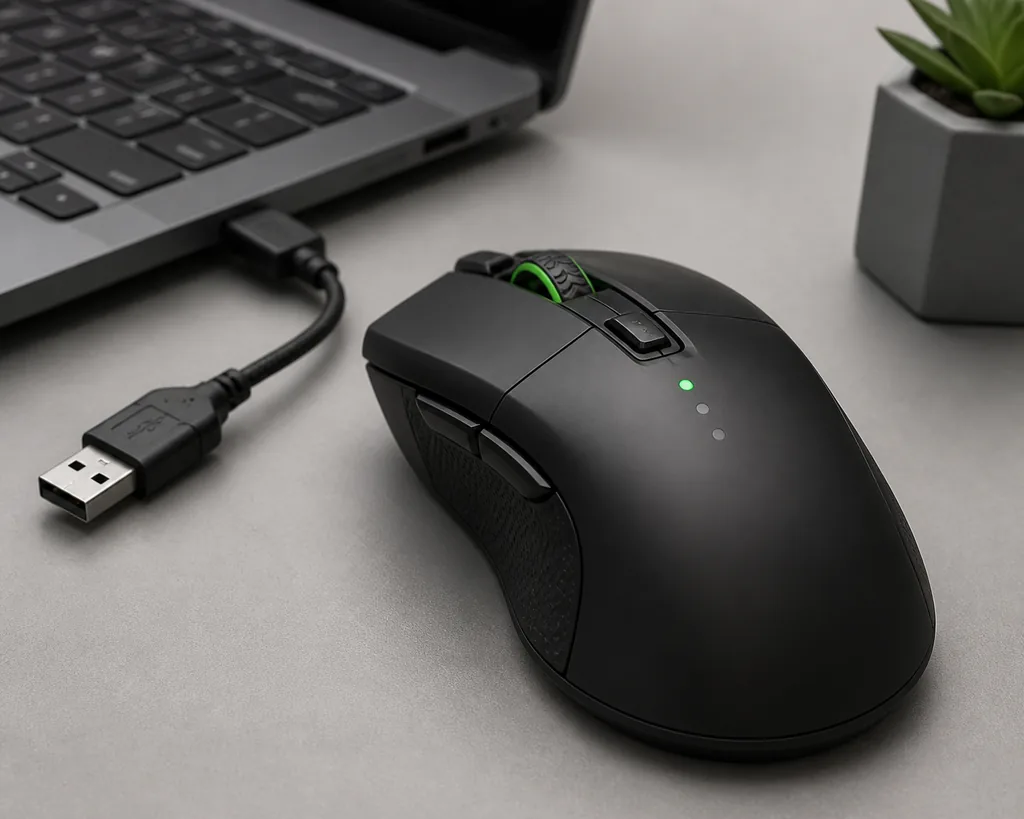
The first image is a clearly labeled editorial illustration. The remaining images are Razer-owned support assets used as visual landmarks; controls and labels can change between products and software builds.
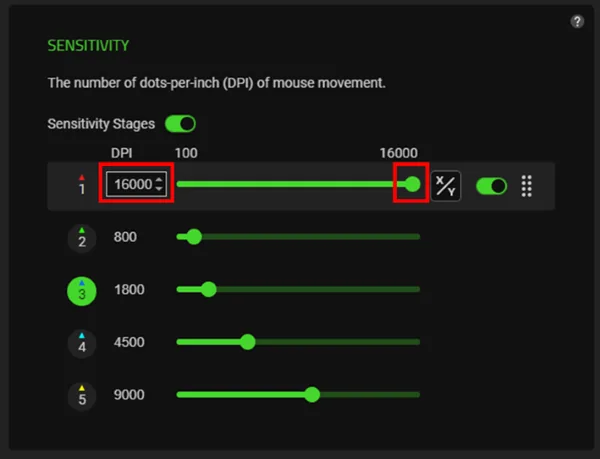
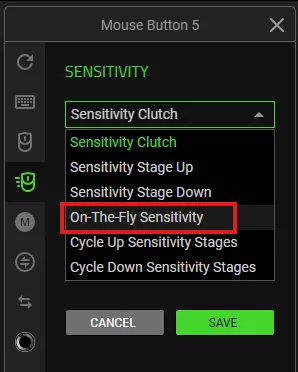
The no-Synapse ideaEditorial illustration only, not an official Razer interface or product screenshot.Site editorial illustrationIdentify the physical controlRazer's manual-DPI diagram distinguishes separate sensitivity buttons from a DPI cycle button.Razer official screenshotSet exact stages in SynapseThe Synapse panel exposes editable sensitivity stages; the available range depends on the device.Razer official screenshotUse on-the-fly sensitivity when supportedOn-the-fly sensitivity is a remappable feature, not a guarantee that every Razer mouse exposes the same menu.Razer official screenshot
Step 1
Identify the DPI button on your exact Razer mouse
Turn the mouse over or look around the scroll wheel and top shell for a button marked DPI, sensitivity, or a small stage indicator. Razer's manual guide shows two common patterns: separate sensitivity-up and sensitivity-down buttons, and a single DPI cycle button. A mouse may also place the control underneath the wheel or use a model-specific layout, so do not assume that every DeathAdder, Basilisk, Viper, or other family member has the same control.
Write down the exact model before troubleshooting. The supported-devices guide is useful when a product family has several generations. The model name also matters when deciding whether the mouse stores stages internally, exposes an onboard profile, or needs Synapse for a persistent custom value.
Find the complete model name and, when available, the RZ identifier.
Look for DPI up/down or DPI cycle wording near the physical control.
Do not infer button behavior from another mouse in the same product family.
Keep the mouse connected directly while testing the setting.
Step 2
Change Razer mouse DPI manually in three safe checks
First, open a harmless application such as Notepad or a blank document. Move the pointer slowly so you have a reference for the current speed. Press the sensitivity-up or sensitivity-down button once, then repeat the same pointer movement. With a DPI cycle button, press it once and compare the pointer movement after each stage. A faster or slower pointer confirms that the device changed a stored stage; it does not tell you the exact numeric DPI.
Second, watch the mouse indicator if your model has one. Use it as a clue, not as a universal color chart. Some devices use different colors or stage counts, and a light may indicate a profile or status rather than a precise DPI value. Third, test the setting in the application where you plan to use it. Windows pointer speed, an application's sensitivity setting, acceleration, and an active profile can change how the same DPI feels.
Test one button press at a time.
Use the same pointer movement for a fair before-and-after comparison.
Do not treat an indicator color as a universal DPI number.
Separate mouse DPI from Windows pointer speed and in-app sensitivity.
Exact values
When Razer Synapse is still required
Use Razer Synapse when the physical buttons only cycle through presets but you need an exact value, a custom stage order, different values for different applications, or a named profile. Razer's Sensitivity Stages panel shows the type of control that can expose numeric DPI values. The range in the screenshot is not a promise for every mouse; the product model and firmware determine which stages and values are available.
On-the-fly sensitivity is a separate assignment path. It can let you hold or press a remapped control while changing sensitivity, but the option may not appear for every device or software branch. If the feature is missing, check device support, current firmware, the active Synapse module, and the exact product page before reinstalling. A browser-based Synapse Web page is also not a full replacement for the desktop app's complete profile and sensitivity controls.
Use Synapse for exact numeric stages and stage order.
Use a profile when different applications need different sensitivity values.
Treat On-the-fly sensitivity as device- and control-dependent.
Use Synapse Web only for the controls that its supported path actually exposes.
Limits and fixes
DPI button problems, missing stages, and unexpected resets
If a DPI button changes nothing, test the mouse on a direct USB port, confirm that the pointer is not being captured by another application, and check whether the button is physically stuck or remapped. If the button is stiff, intermittent, or mechanically damaged, software cannot repair the switch. If the mouse is not detected in Synapse, use the device-detection guide rather than creating a new DPI profile or repeatedly changing Windows settings.
If the mouse returns to an old value after restart, the new value may have been a temporary stage rather than a stored onboard setting. Export or record important profiles before repair or uninstall, and confirm whether the exact model supports onboard memory. The profiles guide explains why a profile is device-specific and why an imported configuration still needs a real test. Do not promise that a factory reset, Synapse reinstall, or a different software branch will add hardware features that the model does not expose.
Separate a missing button, a stuck button, and a missing Synapse device.
Record the working DPI stage before repair or profile changes.
Check onboard-memory support instead of assuming every model saves the same way.
Do not use random firmware, driver, or mirror downloads to fix a DPI setting.
Safety check
Keep the DPI change predictable across work and games
A DPI change is only useful when you can tell which layer changed. Keep one known baseline stage, note the Windows pointer-speed setting, and record any application sensitivity value that matters. When testing a new profile, change one variable at a time. This makes it easier to undo an unexpectedly fast pointer or a profile that switches when a program opens.
For games, workplaces, remote-control tools, or competitive events, follow the relevant rules. This guide explains device settings; it does not authorize macros, automation, input manipulation, or attempts to bypass software restrictions. If the setting changes only in one application, diagnose the active profile and application binding before blaming the mouse hardware.
Keep a known baseline DPI stage.
Record Windows and application sensitivity separately.
Test one profile and one application before changing the whole setup.
Follow the rules of the game, service, workplace, or event.
Final test
Razer mouse DPI acceptance checklist
The setting is ready when you know which control changed it, whether the value is exact or preset, and how to return to a reliable baseline.
1
The exact mouse is identified
The complete model and relevant product-generation details are recorded, so a family-level assumption is not being treated as compatibility proof.
2
The physical control is understood
You know whether the mouse uses sensitivity up/down, a DPI cycle button, a profile control, or no usable hardware DPI button.
3
The result is measured safely
You tested one stage at a time in a harmless application and separated DPI from Windows pointer speed and in-app sensitivity.
4
Exact-value limits are clear
You use Synapse only when you need numeric stages, profiles, remapping, or an on-the-fly feature that the exact device supports.
5
A baseline can be restored
A known stage or profile is recorded, and important settings are exported or documented before repair, uninstall, or migration.
If a button does not work, stop changing unrelated settings. Confirm the exact device, check the supported control path, and use the appropriate Razer support page before replacing drivers or software.
Often, yes. If the exact mouse has sensitivity up/down buttons or a DPI cycle button, you can move through its stored stages without opening Synapse. The button layout, indicator behavior, and number of stages vary by model.
How do I change DPI on a Razer mouse with one button?
Use the DPI cycle button once, move the pointer in a harmless application, and compare the result. Each press may move to the next stored stage. Do not assume the indicator color equals the same DPI number on another Razer model.
How do I set an exact DPI number?
Open the recognized mouse in Razer Synapse and look for Sensitivity Stages. That path can expose numeric values and stage order when the product and current software support it. The range in one screenshot is not a universal range for every device.
Can I change Razer mouse DPI without the app on every model?
No. Some mice have physical controls or onboard settings, while others depend more heavily on Synapse for customization. Check the exact model and the official support or product page before assuming that a family name has identical controls.
Why did my Razer mouse DPI reset after a restart?
The change may have been a temporary stage, an active profile change, or a setting that was not stored in onboard memory. Record the baseline, check the profile, and confirm the exact model's onboard-memory behavior before reinstalling Synapse.
What is On-the-fly sensitivity in Razer Synapse?
It is a remappable sensitivity control shown in Razer's support workflow. It can let a supported mouse change sensitivity while a chosen control is pressed or assigned, but the option is device- and software-dependent rather than universal.