How to Update Razer Synapse 4 and Verify It Worked
Razer Synapse normally updates itself in the background. To check manually, right-click the Razer Central icon in the Windows notification area and choose Check for Updates. Let every Razer window finish, restart Windows when requested, then confirm that Synapse opens and still detects your devices, profiles, macros, and Chroma settings.
Verified August 7, 2026: Razer's update article was updated June 3, 2026. Razer's August 5, 2026 release notes now list Synapse 4 Windows build v4.0.86.2608040510; the maintained Windows installer remains the official source.
Choose your operating system and goal. Add a device name or RZ model number for an extra compatibility reminder.
Runs locally in your browser
Your recommendation will appear here
The result includes platform requirements, the reason for the recommendation, and a verified Razer source link when one is available.
Update facts
What the official Razer update path currently confirms
Checked Aug 7, 2026
Normal behavior
Synapse automatically checks for updates in the background.
Manual check
Right-click the Razer Central icon in the Windows system tray and select Check for Updates.
Current branch
Synapse 4 is the current Windows path. Razer retired Synapse 3 cloud services and updates on February 3, 2026.
Official installer
The stable Razer link resolves to RazerSynapseInstaller.exe with HTTP 200 and an application download MIME type.
Verified file
14,919,368 bytes; a Range check returned HTTP 206 and application/x-msdownload. The PE product version 2.5.0.882 identifies the Razer Installer shell, not the installed Synapse app build.
Public app version
Razer's August 5, 2026 release notes list current Synapse 4 Windows build v4.0.86.2608040510. This guide keeps that application build separate from installer-shell metadata.
Four-stage update
Use this update order before reinstalling
A normal update should be shorter and safer than removing the whole suite. Move to repair or reinstall only after the standard check fails.
1
Back up
Note important profiles, macros, sensitivity values, and account sync status.
2
Check
Use the tray icon's Check for Updates command and keep Windows online.
3
Restart
Allow Razer services and modules to finish, then restart if prompted.
4
Verify
Open Synapse and test device detection, profiles, assignments, macros, and lighting.
Update landmarks
Three visual checkpoints for a Synapse update
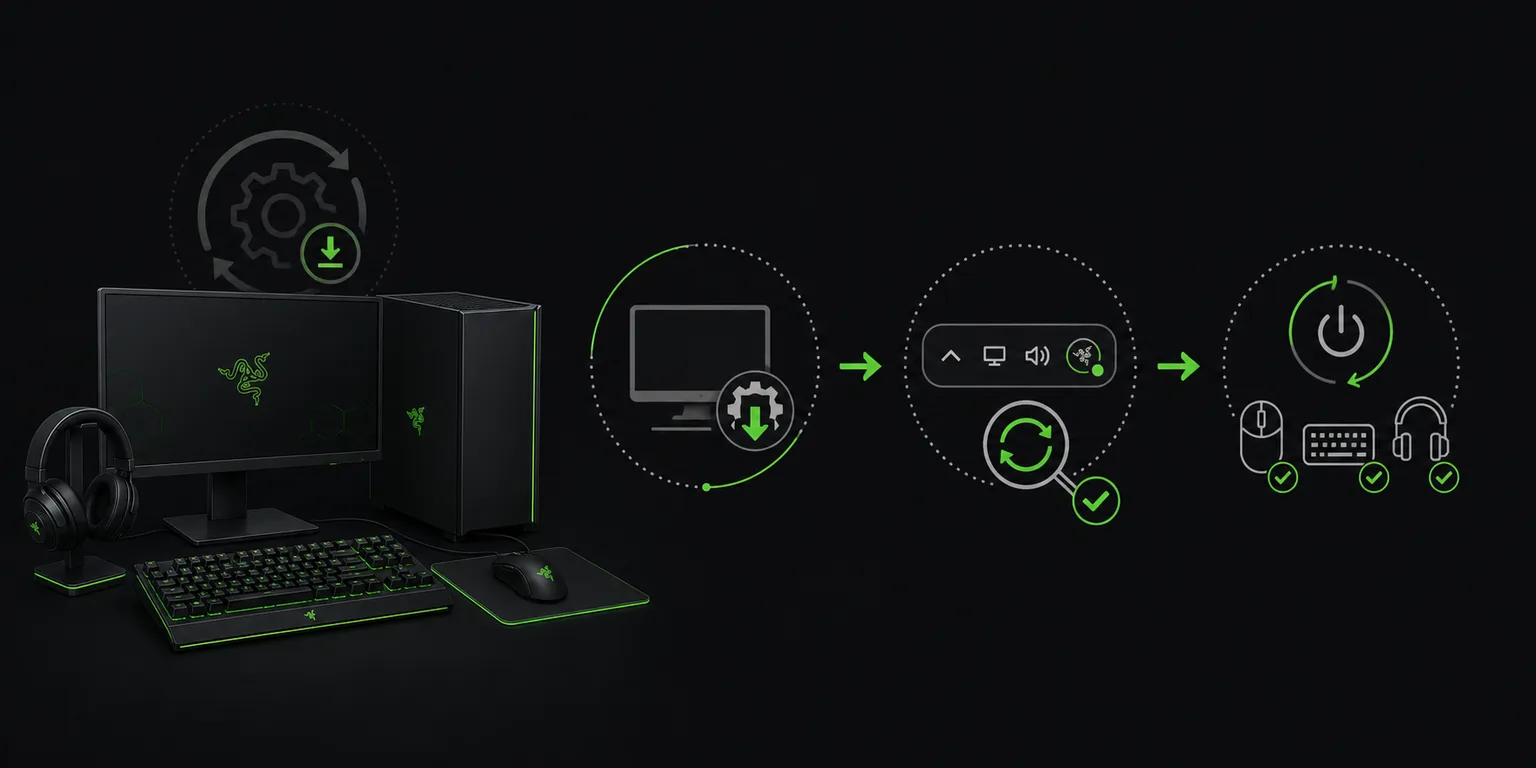
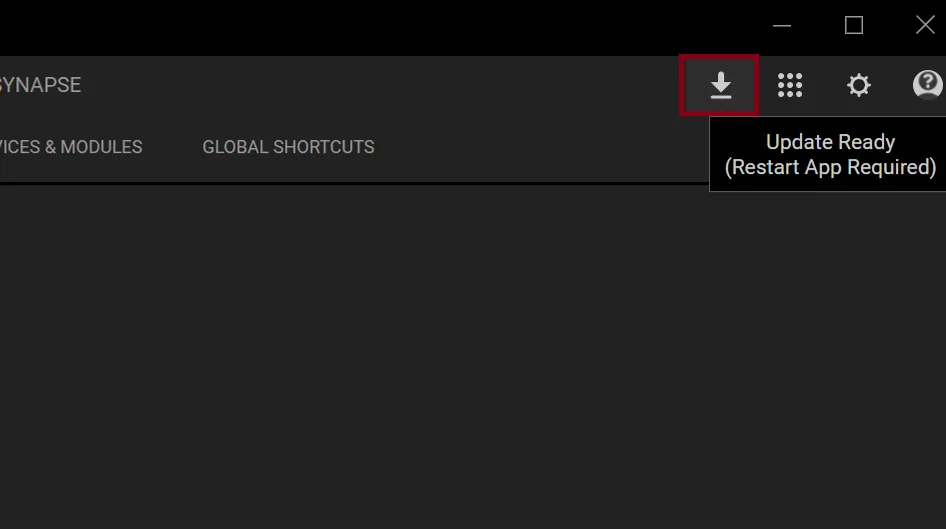
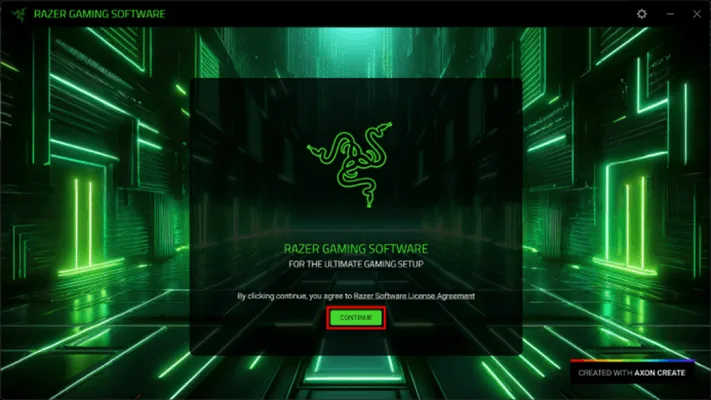
The first image is an editorial flow illustration. The next two are first-party Razer screenshots; interface details can change and screenshots do not prove a current build number.
Follow one controlled update pathIllustration: back up settings, check for updates, restart, and verify every connected device.RazerSynapse.wiki editorial illustrationRecognize the official update promptRazer's support image shows the maintained update notification. Read the version details shown on your own computer rather than relying on an old screenshot.Razer official screenshotUse the installer only as a fallbackIf the normal update path cannot repair the installation, the official installer can restore the current Synapse branch and required modules.Razer official screenshot
Before updating
Protect profiles and prepare Windows
An update should preserve settings, but a short backup check makes troubleshooting much easier. Sign in if you use cloud synchronization, note the active profile for each mouse or keyboard, export important profiles when that option is available, and record custom DPI, polling, button assignments, macros, and Chroma effects that would be difficult to rebuild. Do not download a profile or installer from an unknown mirror just because an update is slow.
Finish pending Windows updates, confirm the date and time are correct, keep the system drive from running critically low on free space, and temporarily close games or utilities that are using Razer devices. Use a stable connection and keep the PC powered. If Windows is waiting for a restart, complete that restart before diagnosing Synapse; an unfinished OS update can hold drivers or services that the Razer updater needs.
Record critical device settings.
Complete pending Windows restarts.
Close software that actively controls the same devices.
Use the official Razer update or installer path only.
Automatic path
Let Razer Synapse update automatically
Razer states that Synapse checks for updates automatically. When an update is found, allow the Razer Central or Synapse prompt to finish downloading and applying its components. Do not end Razer tasks, disconnect the network, shut down the computer, or remove a device while an installer or module progress indicator is active. A large feature update may refresh several services and optional modules even when the visible app window looks idle for a moment.
When the updater asks to close an application or restart Windows, follow that instruction. After sign-in, wait for the Razer Central icon and Synapse services to settle before opening the app repeatedly. Launch Synapse once, allow device modules to initialize, and check the result instead of immediately running the installer again.
Accept only prompts tied to Razer Central, Synapse, or the official installer.
Keep power and network stable.
Do not interrupt active module installation.
Restart once when requested, then test before repeating the update.
Manual path
How to check for Razer Synapse updates manually
Open the Windows notification area near the clock. If hidden icons are collapsed, select the arrow, find the Razer Central icon, right-click it, and choose Check for Updates. The wording and icon arrangement may change, but the command should come from the installed Razer software rather than a browser advertisement or third-party updater. Keep Synapse and Razer Central open long enough to complete the check.
If the tray icon is missing, search the Start menu for Razer Synapse or Razer Central and open it once. If neither starts, restart Windows and check Task Manager for a stuck Razer process before moving to repair. A missing icon by itself is not proof that the software is obsolete, and it does not justify downloading a random installer archive.
Expand hidden system-tray icons.
Right-click Razer Central.
Select Check for Updates.
Apply available components and restart when prompted.
Acceptance test
Verify the Synapse update instead of trusting the prompt
A successful message only confirms that the updater finished its own task. Reopen Synapse and verify that the app reaches its normal home screen, the expected devices appear, and each important profile still maps to the correct product. Test one harmless button assignment, one DPI or lighting change, and one short macro if you use macros. Confirm that settings persist after closing and reopening the app.
Do not compare the app against version numbers copied from old screenshots, download portals, or forum posts. The Razer release notes checked on August 7, 2026 list Synapse 4 Windows build v4.0.86.2608040510. Treat the installed software and official update check as operational evidence, while keeping installer-file metadata separate from the application version.
Synapse opens without an update loop.
Expected devices and modules load.
Profiles, assignments, macros, and Chroma settings remain available.
A test change persists after reopening Synapse.
Failed update
Fix a stuck, looping, or failed Razer Synapse update
Start with the least destructive fixes: wait for active installer work, confirm internet access, free disk space, restart Windows, and run Check for Updates again. If the updater repeatedly returns the same prompt, record the exact message and time, then check whether security software, a VPN, a proxy, or a restricted network is blocking Razer services. Avoid disabling protection permanently; use a controlled test or network administrator guidance.
If Synapse opens but a module is broken, use the official repair path before a full clean removal. If the app will not start, devices disappear, or the installer fails consistently, use this site's not-downloading and not-detecting guides to separate network, service, driver, and hardware problems. The Razer Driver Clean-up Tool is a later clean-install step, not the first response to every update notice.
Capture the exact error before changing the system.
Restart and retry the official check once.
Repair the installed suite before cleaning drivers.
Escalate with logs and device details when the same failure repeats.
Done means verified
Synapse update completion checklist
Consider the update complete only when the software and the connected hardware both behave normally.
1
Official path used
The update came from Razer Central, Synapse, the Razer support article, or the stable Razer installer link.
2
Installation finished
No Razer installer or module progress remains active, and the requested restart is complete.
3
Devices returned
Every expected supported device appears without repeated connect-disconnect behavior.
4
Settings survived
Profiles, assignments, macros, sensitivity, and lighting needed by the user remain available.
5
Failure is documented
If a check fails, the exact error, device model, Windows version, and attempted steps are recorded before repair or support escalation.
If the normal update and one controlled retry fail, stop repeating the same installer and move to repair, driver cleanup, or Razer Support with evidence.
Let Synapse update automatically, or right-click the Razer Central icon in the Windows system tray and select Check for Updates. Apply the update, restart if requested, and verify devices and profiles.
Does Razer Synapse update automatically?
Yes. Razer's support article says Synapse automatically checks for updates. The tray command provides a manual check when you want to confirm.
What is the latest Razer Synapse version?
The Razer release notes checked on August 7, 2026 list Synapse 4 Windows build v4.0.86.2608040510, released August 5, 2026. That release-note build is separate from installer shell PE version 2.5.0.882 and from the version shown by an installed copy.
Why is Razer Synapse stuck updating?
Common causes include a pending Windows restart, low storage, interrupted network access, blocked Razer services, or a damaged module. Restart once, retry the official check, then repair instead of looping the installer.
Should I uninstall Synapse before updating?
Usually no. Use the automatic or manual update path first, then repair. A full clean removal is a later troubleshooting step because it adds risk to profiles, modules, and device drivers.
Can I return to Razer Synapse 3 after an update?
Razer retired Synapse 3 on February 3, 2026 and no longer provides cloud services or updates for it. Use Synapse 4 and the official migration path for supported devices rather than seeking an unverified old installer.