Razer Synapse Firmware Update: Device-Safe Steps and Checks
A Razer Synapse firmware update is not the same as updating the Synapse desktop app. Firmware belongs to a particular mouse, keyboard, headset, receiver, or other device, so identify the exact model, open the matching Razer support entry, prepare the connection, run the correct updater, and verify the hardware afterward.
Verified September 17, 2026: Razer publishes firmware and BIOS updates through device-specific support entries. No universal Razer firmware version or one-size-fits-all updater is claimed here.
Choose your operating system and goal. Add a device name or RZ model number for an extra compatibility reminder.
Runs locally in your browser
Your recommendation will appear here
The result includes platform requirements, the reason for the recommendation, and a verified Razer source link when one is available.
Quick answer
What a Razer firmware update changes
Checked September 17, 2026
Firmware vs app
Synapse updates refresh desktop software and modules. Firmware updates write code to a specific device or receiver. A Synapse update notice does not automatically mean that device firmware needs to change.
Correct source
Start with Razer's firmware and BIOS index, then match the complete product name, generation, and model identifier. Never run an updater because its filename merely looks similar.
Connection
Use the connection requested by the model-specific instructions. A wired device may need direct USB; a wireless product may require its paired receiver or dongle and a charged battery.
Version freshness
There is no universal latest Razer firmware number. Different models and revisions can have different updater packages.
Interruption risk
Keep the device connected and the computer powered. Do not close the updater while it is writing firmware; record the exact error if it fails.
Five controlled stages
Use a model-first firmware workflow
The safest update is the smallest one that matches the exact hardware. Keep identification, source selection, preparation, installation, and verification separate.
1
Identify
Record the complete product name, generation, RZ number, and receiver relationship.
2
Match
Open the Razer support entry for that exact model or supported revision.
3
Prepare
Back up settings, charge wireless hardware, and close competing utilities.
4
Update
Run only the matched updater and keep hardware and power stable.
5
Verify
Reconnect when instructed, confirm detection, and test one safe setting.
Firmware landmarks
Separate device firmware from Synapse software updates
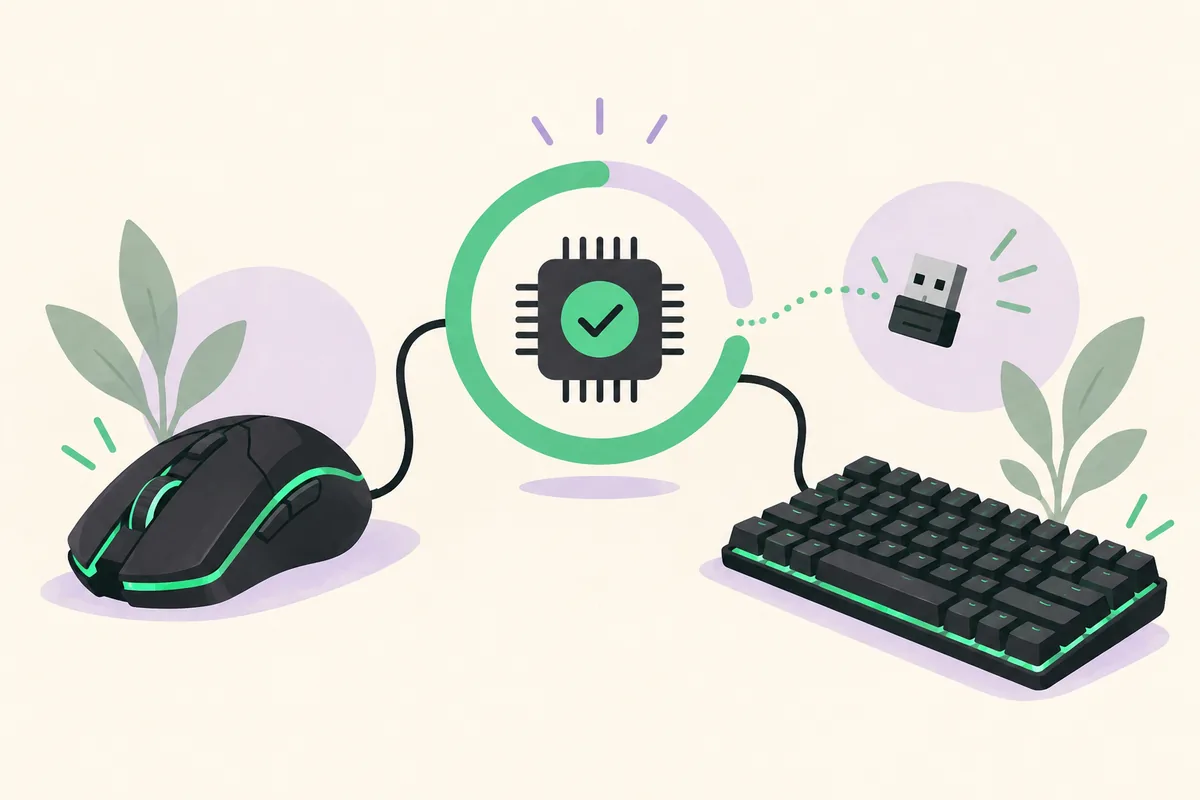
The first visual is an editorial illustration. The two Razer screenshots are comparison points for application update and repair, not universal firmware instructions.
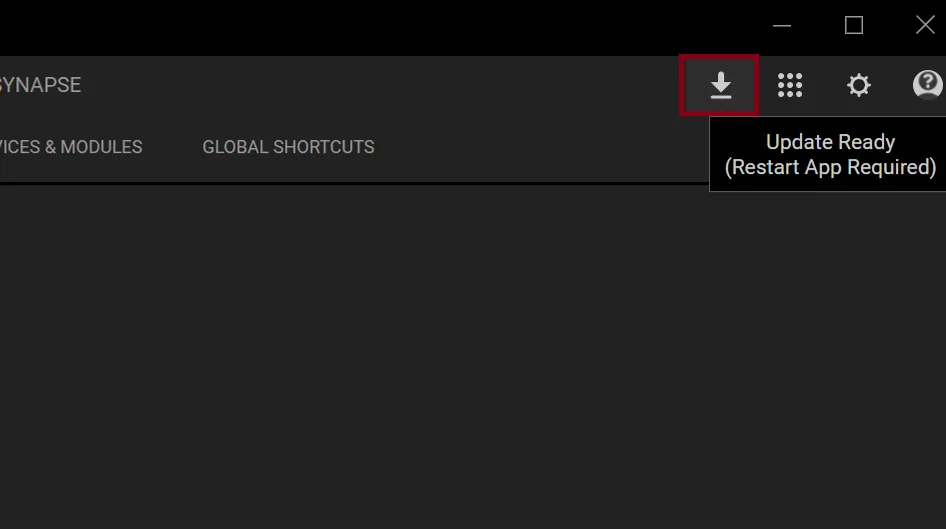
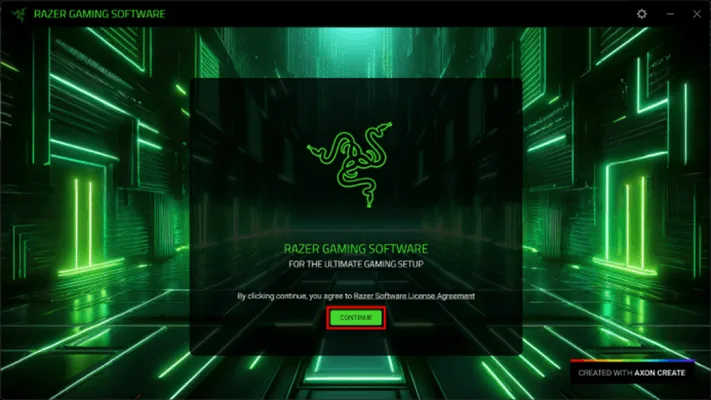
Firmware is device-specificEditorial illustration only. Match the exact device before running an updater.Site editorial illustrationThis is the software update pathThe Razer screenshot shows a Synapse application check; it is not proof that device firmware is being rewritten.Razer official support sourceRepair the app only when neededThe installer can repair Synapse software; it is not a substitute for a model-specific firmware updater.Razer official support source
Start with the distinction
Razer Synapse firmware update vs Synapse app update
A Razer Synapse firmware update may start with a device notice, missing peripheral, or firmware support page. Identify the layer first: an app update refreshes Windows software, services, and modules; firmware writes device-specific code to a mouse, keyboard, headset, base, or receiver.
The source and risk differ. The existing Synapse app update guide covers automatic and system-tray checks. This page covers the matching hardware updater. If the app opens but the product is missing, use the device-detection guide; never use a mirror or another model's file.
Device firmware update: writes model-specific code to hardware or a receiver.
No universal updater: the exact model and official support entry control the decision.
Prepare before downloading
What to check before a Razer firmware update
Record the full product name, generation, and RZ identifier from the label, packaging, or Synapse entry. For wireless hardware, record both the peripheral and receiver. A dock or base station may be a separate target.
Back up profiles, macros, DPI stages, assignments, and lighting. Charge wireless hardware, use direct USB when instructed, avoid sleep or unstable hubs, and close competing utilities.
Confirm the exact model, generation, and RZ identifier.
Identify whether a receiver, dock, or base station is also involved.
Back up profiles, macros, sensitivity, assignments, and lighting.
Charge wireless devices and keep the computer powered.
Choose the official package
How to find the correct Razer firmware updater
Open Razer's firmware and BIOS update index. Search the complete product name, then check model, revision, operating system, and receiver requirements. If the exact device is absent, stop; do not substitute a similar model.
Match the product and revision, Razer support page, updater name, and connection instructions. Save the support URL and filename. A Razer Central or Synapse notice may concern the app, not device firmware.
If the problem is the application, use the Synapse 4 guide or service guide; use the model-specific support entry for hardware firmware.
Use a Razer-owned support page as the starting point.
Match the complete model and revision, not a similar family.
Check whether the package targets the peripheral, receiver, dock, or more than one component.
Read connection, operating-system, and restart instructions first.
Run the update carefully
How to update Razer device firmware safely
Close Synapse when the model instructions require it and keep the exact hardware connected in the requested mode. For wireless products, follow the published peripheral/receiver order instead of assuming one update covers both.
Run the updater with the device idle and confirm the detected model. During writing, do not unplug, remove the receiver, cut power, close the tool, force a restart, or allow sleep. A brief pause is not proof of failure; follow the final reconnect or restart instruction.
Close Synapse when the official instructions require it.
Confirm the detected device before selecting Update.
Keep power, cable, receiver, and computer stable.
Never interrupt an active firmware write.
Follow the exact reconnect or restart step after completion.
Verify and recover
How to confirm or troubleshoot the firmware update
After a success message, confirm that Windows or Synapse detects the product, check the receiver pair when relevant, and test one harmless setting such as DPI or a simple button assignment. Reopen Synapse or restart if instructed, then confirm the setting persists before restoring profiles.
If the updater fails, record the exact message, model, receiver state, operating system, connection, and stage. Recheck the model, cable, battery, power, permissions, and pending restart; never force another model's package. Preserve the log or screenshot and contact Razer Support if the device is unusable or writing fails repeatedly. Use the device guide or download guide for the next branch.
The expected device or receiver appears again.
One harmless setting can be changed and saved.
The result survives reopening Synapse or restarting.
A model mismatch or repeated write failure is not ignored.
Support receives the exact source, model, and failure evidence.
Done means verified
Razer firmware update completion checklist
Treat the update as complete only when the matched hardware reconnects, the expected controls are available, and one safe setting survives a second check.
1
The device is identified
The complete product, generation, RZ identifier, and receiver relationship are recorded.
2
The source is official
The updater came from the Razer firmware index or exact support entry.
3
Settings are protected
Important profiles, macros, DPI stages, assignments, and lighting are backed up or recorded.
4
The write was uninterrupted
The device, receiver, power, cable, and computer stayed stable until completion.
5
The result is tested
The device reconnects, a harmless setting works, and the result persists after the next check.
A safe Razer Synapse firmware update is a matched hardware procedure, not a generic download. If the model, source, connection, or result is uncertain, stop and preserve the evidence.
Does Razer Synapse update device firmware automatically?
Not every firmware update follows the same path. Synapse can show device-related prompts, but Razer publishes firmware through model-specific support entries. Confirm the exact product before running an updater.
Is a Synapse app update the same as a firmware update?
No. An app update refreshes desktop software, services, or modules. A firmware update writes device-specific code to hardware or a receiver, with different source and interruption risks.
How do I find the correct Razer firmware updater?
Start with Razer's firmware and BIOS index, search the complete product name, and match the exact generation or revision. Check whether the entry targets the peripheral, receiver, dock, or another component.
Should I close Razer Synapse before updating firmware?
Follow the device-specific Razer instructions. Many standalone updater workflows ask you to close Synapse or other utilities so they do not hold the device or receiver open.
What should I do if the Razer firmware updater fails?
Record the message and stage, recheck the model match, cable or receiver, battery, power, permissions, and restart state, and do not force another model's updater. Preserve evidence and contact Razer Support if the write fails repeatedly.
Is there one latest firmware version for all Razer devices?
No universal number should be assumed. Firmware is published by device or component, and different models or revisions can have different updater packages and release details.