Razer Synapse Service: What It Does and Safe Fixes
The Razer Synapse service is part of the background path that lets Synapse keep its desktop app, device modules, settings, and supported peripherals connected. If the process is missing, stuck, or flagged by security software, start with evidence and the official repair order instead of deleting a random service file.
Verified Aug 16, 2026: Razer product, support, installation, release-note, and maintained download sources were checked. The production site still matches Synapse 4 Windows build v4.0.86.2608040510; the official installer Range check totals 14,919,368 bytes.
Interactive version checker
Find the right Razer Synapse download
Choose your operating system and goal. Add a device name or RZ model number for an extra compatibility reminder.
Runs locally in your browser
Your recommendation will appear here
The result includes platform requirements, the reason for the recommendation, and a verified Razer source link when one is available.
Quick answer
What the Razer Synapse service means
Checked Aug 16, 2026
Role
The background service or process helps Synapse connect its desktop app, device modules, settings, and supported peripherals. Exact process names can vary by Synapse branch and Windows state.
Not a diagnosis
Seeing a Razer process in Task Manager is not proof of malware or a broken install. A warning needs its source, file path, signature, and alert details checked together.
Safe first action
Inspect the visible status and error before stopping anything. Do not delete a .sys, DLL, or service entry just because a forum post names it.
Internet boundary
Razer distinguishes installed or offline behavior from sign-in, cloud, updates, and server access. A no-internet message can be a network or security path, not a missing service.
Current source check
On Aug 16, 2026, the site still matched Synapse 4 Windows build v4.0.86.2608040510 and the maintained installer total of 14,919,368 bytes. No newer production version field was found.
Reliable workflow
Check the service in six controlled steps
Treat the Razer Synapse service as one part of a larger chain. Separating launch, network, security, device, and version symptoms prevents an unnecessary clean reinstall.
1
Observe
Record whether Synapse is closed, stuck loading, or open without the device.
2
Identify
Note the process name, visible error, Windows build, and exact Razer device.
3
Check
Review Task Manager, Services, firewall, VPN, and security notifications without deleting files.
4
Repair
Use the current first-party install or repair path before a last-resort cleanup.
5
Verify
Open Synapse, confirm the device, then test one profile or setting in a harmless app.
6
Escalate
Keep logs, screenshots, source URLs, and exact alert text for Razer Support.
Service path visuals
See the service path without mistaking it for a screenshot
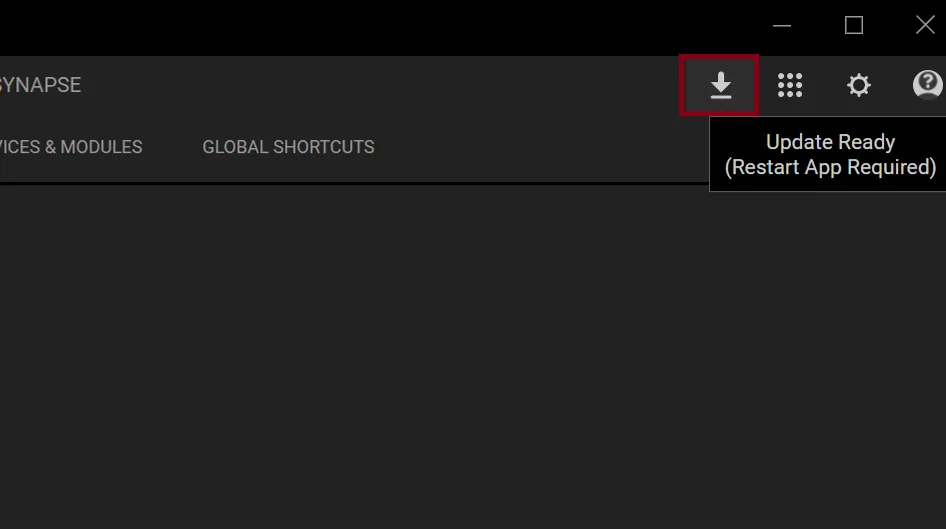
The concept illustrations below explain the relationship between the app, background service, network/security checks, and Razer devices. The update panel is an existing first-party Razer screenshot; the two diagrams are editorial illustrations, not official interfaces.
The background-service relationshipEditorial illustration only; this is not a Razer screenshot or official UI.Site editorial illustrationUse the official update pathAn existing Razer screenshot showing the update-check route; controls can vary by build.Razer official screenshotTroubleshoot in the right orderEditorial illustration only; use the surrounding text for the actual repair sequence.Site editorial illustration
What it controls
What the Razer Synapse service does
A Razer Synapse service is a background component, not the same thing as the Synapse window. It can help the desktop application communicate with device modules, apply supported settings, and keep the control path available while you move between Windows, a game, and the desktop. The exact behavior depends on the Synapse branch, the connected device, installed modules, and the Windows account state.
That distinction matters when diagnosing a failure. If the app never creates a usable window, use the Razer Synapse not opening guide. If the app opens but a mouse, keyboard, headset, or accessory is absent, use the device detection guide. If profiles or macros are missing after the service starts, check the profiles guide or macro guide instead of repeatedly restarting the same process.
A background process is not automatically a fault.
A running service does not prove that every device or module is supported.
The app, service, device module, firmware, and network can fail independently.
Low-risk inspection
How to check the Razer Synapse service process
Start with Task Manager and record the process name, CPU or memory behavior, publisher information, and whether it returns after Synapse is opened. If Windows exposes the component in Services, inspect its status and startup behavior without changing it immediately. A short-lived process during launch or update is not the same as a service that loops, consumes unusual resources, or stops every time the device is connected.
Check the exact file path and the security product's alert details before deciding that a file is unsafe. Do not download a replacement DLL, copy a service file from a forum, or delete a service entry to make the warning disappear. When the app is stuck, follow the official troubleshooting order in the Razer fails-to-start guidance and keep the visible error for escalation.
Capture the process name and path before stopping it.
Compare the publisher and source with the official installer path.
Keep a screenshot of the Windows or security alert.
Do not treat a forum filename as a verified repair package.
Safe repair order
Razer Synapse service not running: safe fixes
Restart Windows once, close competing RGB or device utilities, and open Synapse a single time. A pending restart, a stuck Razer Central process, a module that is still loading, or a security block can make a healthy service look absent. If the problem appeared after an update, compare the current build and the exact point where the app stops before removing anything.
If the service still fails, use the maintained Synapse update guide and the official install or repair path. Back up profiles, button mappings, DPI stages, macros, and Chroma settings first. Reserve the Razer Driver Clean-up Tool for the last-resort conditions described by Razer; it is not a shortcut for every process error.
Restart before changing services or files.
Close competing device utilities during the test.
Back up profiles and macros before repair or removal.
Use the official installer and support sequence.
Clean stale drivers only when the normal repair path has failed.
Security boundary
Defender or antivirus warning: what to check
A security alert is a reason to verify, not a reason to panic or to whitelist every Razer process. Read the product name, detection name, file path, action taken, and timestamp. Compare the file with the official source you used, keep Windows Security enabled, and run the product's own scan or repair action. If the alert points to a downloaded mirror or an unexpected directory, do not restore it just because its filename contains Razer.
If an official installer or an installed component is flagged repeatedly, save the alert and contact the software vendor or Razer Support. Do not publish a blanket claim that the service is safe or malicious without the exact file, signature, and detection context. The safest page-level recommendation is to preserve evidence, use a maintained first-party source, and avoid arbitrary exclusions.
Keep the alert name, path, timestamp, and action.
Do not permanently disable antivirus or firewall protection.
Do not whitelist an unknown mirror or copied service file.
Escalate repeated official-source detections with the evidence attached.
Network and account
No internet, firewall, or server-access error
The Razer Synapse service and an internet connection are related but not identical. A firewall, VPN, proxy, DNS filter, TLS inspection product, sign-in state, or Razer server issue can produce a connection message even when the local process is present. Test one controlled change at a time, record whether the failure affects launch, login, updates, cloud features, or device controls, and avoid assuming that reinstalling will fix a blocked network path.
For setup failures, use the download and installation guide. For a restricted-network or offline question, use the offline installer guide: it separates the connected bootstrap installer from features that may need sign-in, updates, cloud synchronization, or server access. Some local settings can work after setup, but that does not prove that every module is usable without a connection.
Separate local launch from sign-in, update, and cloud symptoms.
Check proxy, VPN, DNS, firewall, and endpoint-security rules.
Use the official download path rather than an unknown offline bundle.
Record the failed stage before changing the network.
Escalation
When to repair, clean reinstall, or contact support
Repair is reasonable when the official app is installed, the device is supported, and the failure began after a module, update, or interrupted setup. A clean reinstall is a later step after profiles and settings are backed up, normal removal has completed, and the official instructions justify clearing stale components. Do not remove the service first and hope that the next installer recreates the correct device state.
If the same service error returns after an official repair, collect the Windows version, Synapse branch, exact device or RZ number, process path, security alert, network type, and the time of failure. The supported-device checker can rule out a compatibility mismatch, while Razer Support can interpret logs or a repeated official-source detection.
Back up settings before uninstalling or cleaning.
Use the exact device model and operating-system branch in the report.
Attach logs and screenshots instead of a vague claim that the service is broken.
Stop repeating reinstalls when the evidence points to compatibility or security.
Service decision
A safe Razer Synapse service checklist
Use this sequence whenever a service process, background component, or security alert is the first thing you notice. The goal is to restore the smallest necessary part of the stack while protecting profiles and preserving evidence.
1
Separate the symptom
Decide whether Synapse does not open, opens without a device, cannot sign in, cannot update, or only shows a security alert. Each symptom has a different next guide.
2
Verify the source
Use the Razer-owned product or support path and record the file path, publisher, and alert details. Never use a copied service file as a test.
3
Inspect before stopping
Review Task Manager or Services and capture the process name and state. Stop a clearly stuck process only as a controlled test, not as a permanent repair.
4
Repair in order
Restart, close competing utilities, update or repair from the official path, and only then consider a documented clean-up sequence. Keep backups outside Synapse folders.
5
Test and escalate
Confirm the app opens, the exact device appears, and one safe setting or profile works. If the error returns, send Razer Support the complete evidence rather than repeating random removals.
The Razer Synapse service is best handled as a diagnostic clue, not as a file to delete. A controlled check of the process, source, network, security state, device support, and current repair path gives you a safer result and a much stronger support report.
It is a background part of the Synapse control path that can help the desktop app, device modules, settings, and supported Razer hardware communicate. The exact process name and behavior can change by Synapse branch and Windows state.
Is the Razer Synapse service safe?
A Razer process from the maintained official installer is not automatically suspicious, but a filename alone is not proof. Check the publisher, full path, signature, security detection, and source. Do not make a blanket safety judgment about a copied or unexpected file.
Should I disable the Razer Synapse service?
Do not disable it permanently just to hide an error. First identify whether the issue is launch, device recognition, network access, or a security alert. If a controlled restart is needed, document the original state and restore the supported startup path after testing.
Why does Razer Synapse say there is no internet connection?
The message can come from a firewall, VPN, proxy, DNS filter, sign-in state, server access problem, or an interrupted module download. It does not by itself prove that the local service is missing. Use the site's download and offline-installer guides to separate network setup from local device control.
How do I restart or repair the Razer Synapse service?
Restart Windows, close competing device utilities, inspect the process, and use the official update or repair path. Back up profiles and macros before uninstalling. Use the clean-up tool only when normal repair has failed and the documented conditions apply.
Can I delete Razer Synapse Service.sys?
Do not delete a .sys file or service entry based on a search result. Capture the full path and security alert, verify the official source, and use Razer or Windows support for repeated detections. Removing a driver component blindly can make the device and repair path harder to recover.