Razer Synapse Not Opening? Safe Fixes for Windows & Mac
When Razer Synapse is not opening, first separate a missing window, a sign-in loop, an instant crash, and a window that opens but never finishes loading. Start with low-risk process, account, security, and repair checks before uninstalling or downloading another installer.
Verified August 7, 2026: Razer's current fails-to-start support path covers sign-in, administrator launch, RazerAppEngine, security software, CPU 0% symptoms, repair, and clean reinstall. The official Synapse 4 release notes list Windows build v4.0.86.2608040510 on August 5, 2026.
Choose your operating system and goal. Add a device name or RZ model number for an extra compatibility reminder.
Runs locally in your browser
Your recommendation will appear here
The result includes platform requirements, the reason for the recommendation, and a verified Razer source link when one is available.
Before changing software
What Razer Synapse not opening can mean
Checked 2026-08-07
No window at all
Check Razer processes, sign-in state, administrator launch, and security blocks before reinstalling.
Window opens then closes
Treat it as a crash or service/module failure; capture the visible behavior and continue with repair checks.
RazerAppEngine
Razer's support path includes a RazerAppEngine process that may remain at 0% CPU when startup is blocked.
Current Windows release
Razer's August 5, 2026 release notes list Synapse 4 Windows build v4.0.86.2608040510.
Verified Windows installer
The maintained Razer short link resolved to RazerSynapseInstaller.exe, MIME application/x-msdownload, 14,919,368 bytes.
Clean-up threshold
Use the Driver Clean-up Tool only after normal repair or uninstall fails and important profiles are backed up.
Find the failing stage
Use one controlled launch sequence
The right fix depends on whether the app is failing before sign-in, during service startup, or after device modules load.
1
Observe
Record whether no window appears, the app flashes and closes, sign-in repeats, or a blank/loading window remains.
2
Prepare
Restart Windows, close games and RGB utilities, then try one administrator launch and one normal sign-in.
3
Repair
Check RazerAppEngine, security notifications, pending restarts, services, storage, and the official repair path.
4
Reinstall
Only after the earlier checks fail, use the current Razer installer or the documented clean-up sequence.
Official Razer checkpoints
Three visual checks before a clean reinstall
These are first-party Razer support screenshots. Interface details can change, so use the current wording on your own system as the final evidence.
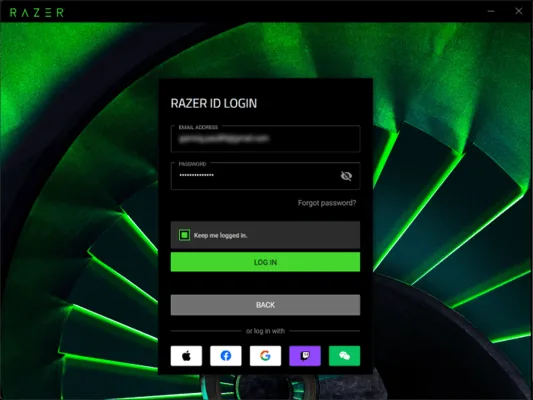
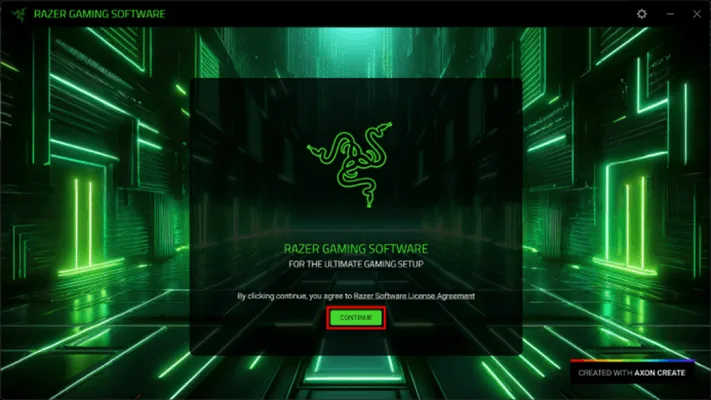
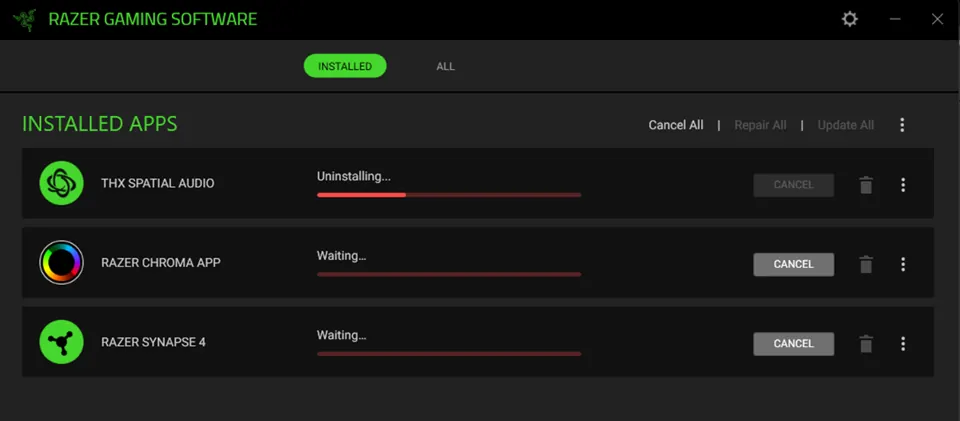
Check the sign-in stageIf Synapse reaches sign-in, the problem is different from an app that never creates a window. Confirm the account path before reinstalling.Razer Support sourceUse the current installer as a repair pathAn official installer can restore the supported branch after low-risk launch checks and normal repair have failed.Razer Support sourceWait for removal to finishDo not interrupt the supported uninstall or cleanup flow. Restart Windows before installing the current Razer branch again.Razer Support source
Symptom boundary
Razer Synapse is not opening: identify the exact symptom
A launch failure is not the same as a failed download or a missing device. If the browser cannot save the installer, use the Razer Synapse download troubleshooting guide. If Synapse opens normally but a mouse, keyboard, headset, or accessory is absent, use the device detection guide instead.
For this page, the useful starting point is a computer where Synapse should already be installed but the app does not create a usable window. Note whether the Razer logo appears briefly, whether Windows shows a sign-in prompt, whether the window remains blank, and whether the problem affects every Windows account or only one account. Those details determine whether you should test processes, sign-in, services, permissions, or a clean reinstall.
Do not use a new filename, torrent, shared-drive copy, or random mirror as a diagnosis. A different installer can hide the original problem and can also belong to the wrong Synapse branch. Keep the official source and the exact device model recorded while you work.
No window: start with process, sign-in, administrator, and security checks.
Window flashes and closes: record it as a crash or service failure.
Blank or loading window: check RazerAppEngine, network access, and pending restart state.
Device missing after launch: move to compatibility and detection checks rather than repeating launch fixes.
Low-risk Windows checks
Try the safe fixes before reinstalling
Restart Windows once before changing files or services. A pending Windows update, a Razer process left from a previous session, or an installer waiting for a reboot can make a second launch look broken. After the restart, wait for the desktop to settle, close any game or RGB utility that controls the same device, and open Razer Synapse once instead of clicking repeatedly.
If the app still does not open, use Task Manager to check for an existing Razer Synapse, Razer Central, or RazerAppEngine process. End only a clearly stuck Razer process, then try again. Do not terminate unrelated Windows services or delete folders while the cause is unknown. If the process immediately returns, capture its name and behavior rather than starting several copies.
Try one administrator launch as a diagnostic, not as a permanent permission workaround. Right-click the installed Razer Synapse shortcut or executable, choose the Windows administrator option, and observe whether the behavior changes. If it opens only with elevation, review permissions, security software, and the installed service path instead of leaving every launch elevated.
Check the Windows notification area and Razer Central. A sign-in prompt or update notice means the application is reaching a later stage than a completely silent launch. Let the official prompt finish, keep the computer powered, and restart when requested. The Razer Synapse update guide covers the normal update sequence separately.
Restart once and wait for Razer services to settle.
Close games, RGB tools, overlays, and duplicate Razer windows.
End only a clearly stuck Razer process in Task Manager.
Use administrator launch once to compare behavior, not to hide a permission problem.
Record the exact message, window behavior, Windows version, and time.
Sign-in and service checks
Check RazerAppEngine, security software, and account state
Razer's current support path specifically calls out RazerAppEngine and a process that may remain at 0% CPU. Treat that as a useful clue, not a universal diagnosis. Confirm whether the process is present, whether Razer Central is signed in, and whether Windows Security or another security product has displayed a blocked-process or quarantined-file notice.
Do not permanently disable antivirus, firewall, or endpoint protection. If a security product is involved, review its event and quarantine history, use the vendor's controlled allow-list procedure, or ask the device administrator for help. A clean launch after protection is disabled is not proof that an unknown file is safe; it only shows that the security layer changed the result.
If the app reaches sign-in but loops, verify the account and network path, close duplicate Razer windows, and retry once after a restart. A login problem can look like a crash when the window closes before the prompt finishes. If the account works in the browser but the desktop app remains stuck, keep that distinction in your support notes.
When a Razer module or service is damaged, normal repair is safer than deleting program folders. Check free storage, pending Windows restarts, and whether another user account can reproduce the problem. If every account fails, the installation or service layer is more likely; if only one account fails, keep profile and account data in scope before a clean removal.
Check RazerAppEngine and note whether it stays at 0% CPU.
Review security events without disabling protection permanently.
Separate a sign-in loop from a process crash.
Test whether another Windows account shows the same behavior.
Keep free storage and pending restart status in the evidence record.
Repair and current release
Repair or reinstall only after the first checks
If low-risk checks do not change the result, use the official Razer repair or reinstall path. The current Windows release notes checked August 7, 2026 list Synapse 4 build v4.0.86.2608040510 with a release date of August 5, 2026. This is the published application release identifier; it is separate from the PE version of the installer shell and from the version shown inside an already installed copy.
The maintained Windows short link currently redirects to a Razer-hosted RazerSynapseInstaller.exe. A Range check on August 7, 2026 returned HTTP 206, application/x-msdownload, and a total size of 14,919,368 bytes. Do not turn that observation into a permanent file URL with an assumed future filename; use the Razer short link so the source can be maintained.
Before reinstalling, export or record important profiles, DPI stages, button assignments, macros, and Chroma settings. Close the app, follow the official installer prompts, restart when asked, and test one supported device before reconnecting a full setup. If the installer itself will not launch, return to the download and installer guide instead of treating the same package as a launch fix.
The Razer Driver Clean-up Tool guide is a last-resort clean reinstall path, not the first fix for every launch problem. Use the normal uninstall or repair order first, keep a restore point and backups, then clean stale driver state only when the documented conditions are present.
Back up settings before removal.
Use the official maintained Razer link.
Restart between removal, cleanup, and reinstall stages.
Test launch and one supported device before restoring every profile.
Do not confuse the installer shell version with the installed app release.
Mac branch
If Razer Synapse is not opening on Mac
The Mac path is separate from the Windows branch and is a Preview for supported Apple silicon systems. Confirm the Mac requirements and the exact device on the Razer Synapse for Mac guide before treating a missing control as a launch failure. An Intel Mac, unsupported device, or different macOS state can produce a valid-looking installation with no usable device controls.
On Mac, close Synapse, restart the computer, open it once from Applications, and check whether the issue is a sign-in prompt, an immediate close, or a device-support mismatch. Use Activity Monitor only to identify a clearly stuck Razer process, and keep the official Mac installer rather than mixing it with the Windows package. If the app opens but the device is missing, move to platform compatibility and support evidence.
A successful launch is not the same as successful hardware recognition. Keep the exact product name, generation, operating system, processor architecture, and visible error together. That evidence is more useful to Razer Support than a repeated reinstall with an unknown package.
Confirm Apple silicon and the current macOS requirement.
Use the Mac Preview path, not a Windows installer.
Separate a launch failure from a device-list limitation.
Record the exact model and visible message before escalating.
After launch
If Synapse opens but your device is still missing
Stop repeating launch fixes once the application reaches its normal home screen. At that point, confirm Windows or macOS can see the hardware, test a direct USB or receiver connection, check the complete product name and RZ number, and verify the correct Synapse branch. Reinstalling an already open app cannot add a device to an unsupported list.
Use the site's Razer Synapse device detection guide for USB, receiver, Windows driver, module, firmware, repair, and clean-reinstall checks. This separation keeps the new page focused on application startup while preserving a clear next step for a user whose real problem is recognition.
Windows or macOS sees the device.
The exact model and RZ number are supported.
The required Synapse module finishes loading.
The issue is not caused by a cable, receiver, firmware, or competing utility.
Done means verified
Razer Synapse launch recovery checklist
Consider the problem controlled only when the app opens repeatedly and the next layer of device or profile behavior is also tested.
1
The symptom is recorded
You know whether the app never appears, flashes and closes, loops at sign-in, stays blank, or opens without a device.
2
Windows or Mac was restarted
Pending updates, installer requests, stuck processes, and Razer services were given one clean restart before deeper changes.
3
Account and security state were checked
Razer Central, sign-in, security events, storage, permissions, and RazerAppEngine behavior were reviewed without permanently disabling protection.
4
The official branch was used
The current Razer Synapse 4 source was used for Windows, or the separate Mac Preview path was used on a supported Apple silicon system.
5
Profiles were protected
Important profiles, macros, DPI stages, button assignments, and Chroma settings were exported or recorded before removal.
6
The result survives a second launch
Synapse opens after closing and reopening, the expected modules load, and at least one supported device or setting is tested before full restoration.
If the same failure returns, stop repeating the installer. Keep the exact device, operating system, visible error, Razer process behavior, source link, and attempted steps, then use the official Razer Support path.
Common stages include a stuck Razer process, pending Windows restart, sign-in loop, security block, RazerAppEngine or service failure, damaged modules, and an unsupported platform or device. Record whether the window never appears, closes, or stays loading before choosing a fix.
How do I fix Razer Synapse 4 not launching?
Restart Windows, close duplicate Razer processes, try one administrator launch, check Razer Central and security events, then use the official repair or current Razer installer. Do not start with a random mirror or permanent antivirus disable.
What does RazerAppEngine at 0% CPU mean?
Razer's fails-to-start support path includes a RazerAppEngine process that may remain at 0% CPU when startup is blocked. Treat it as a clue and record the process state alongside sign-in, security, service, and restart evidence rather than assuming one universal cause.
Should I uninstall Razer Synapse if it will not open?
Not immediately. Try the low-risk launch, account, security, restart, and normal repair checks first. If removal becomes necessary, back up profiles and use the official uninstall or the documented Driver Clean-up Tool sequence instead of deleting folders or registry entries yourself.
What is the current Razer Synapse 4 version?
The Razer Synapse 4 release notes checked on August 7, 2026 list Windows build v4.0.86.2608040510 with an August 5, 2026 release date. That release-note build is separate from the installer shell PE version 2.5.0.882 and from the version displayed by an installed copy.
Why does Synapse open but not show my device?
That is usually a compatibility, USB or receiver, firmware, Windows driver, module, or device-detection problem rather than a launch problem. Confirm the exact model and RZ number, then use the device detection guide.
What should I do if Razer Synapse will not open on Mac?
Confirm the Apple silicon and macOS requirement, use the separate Mac Preview path, restart, open the app once from Applications, and distinguish a crash from a device-list limitation. Do not mix the Windows installer with the Mac package.