Razer Chroma Not Working? Safe RGB Fixes for Synapse and Windows 11
When Razer Chroma is not working, first decide whether the device is dark, shows the wrong color, lights only in Synapse, or fails only inside a game. A short static-color test and a check of Windows Dynamic Lighting usually tell you whether the control path, a module, a profile, a USB connection, or the hardware needs attention. This guide keeps the original settings safe and avoids random driver or registry changes.
Verified October 23, 2026: Razer RGB support, Chroma Connect, Synapse 4, and Windows Dynamic Lighting guidance were checked against Razer-owned support and product pages. The current official path remains Synapse 4 for new setup; installed Synapse 3 devices have a documented support boundary.
Open Synapse, choose one simple Static color, and test one device. A basic effect is easier to diagnose than Spectrum, Ambient Awareness, or a game effect.
Windows 11 conflict
Dynamic Lighting can take control of compatible RGB devices. In Windows, open Settings > Personalization > Dynamic Lighting and turn off its device control before selecting Chroma RGB in Synapse.
Game-only failure
If desktop lighting works but a game does not react, check Chroma Apps or Chroma Connect, the game's own RGB option, and whether the title is supported by the Razer Chroma ecosystem.
Device boundary
A device that is missing from Synapse needs the device-detection path first. Lighting troubleshooting is appropriate when the device appears but the output is wrong, dark, or not synchronized.
Version boundary
Razer Synapse 4 is the current download path and is backwards compatible with Synapse 3 devices. Razer says Synapse 3 stopped receiving updates and cloud support on February 3, 2026, while installed devices can remain configurable.
Controlled diagnosis
Use a symptom-first Chroma check
Change one control at a time and write down what changes. The result is more useful than repeating a reinstall without knowing which layer failed.
1
Describe
Record whether the device is dark, the wrong color, partly lit, or only broken in a game.
2
Simplify
Select a single Static effect and close other RGB applications during the test.
3
Prioritize
Check Windows Dynamic Lighting, Synapse lighting mode, profile selection, and Chroma modules.
4
Isolate
Use a direct USB connection, another port, or a second computer to separate software from hardware.
5
Repair
Update or repair from Razer's path only after the failed stage is clear.
6
Verify
Test a safe color, one game effect, sleep and wake, and a full restart before removing backups.
Troubleshooting visuals
Follow the control path before changing hardware
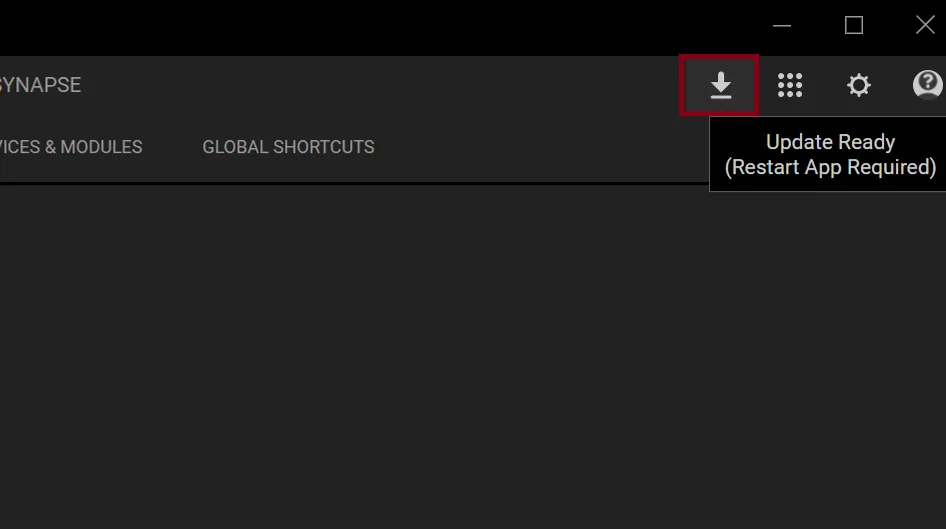
These existing site visuals explain the service and update checkpoints around Chroma troubleshooting. They are editorial or first-party references, not a promise that every Synapse build uses identical labels.
Separate the control layersEditorial illustration: use the surrounding text for the actual RGB decision order.Site editorial illustrationUse the official update pathAn existing Razer screenshot used as an update reference; controls may move between builds.Razer official screenshotRemember the background pathA service or module can affect lighting without proving that the LEDs are damaged.Site editorial illustration
1. Choose the symptom
Razer Chroma is dark, the wrong color, or only partly lit
For a clear Razer Chroma not working diagnosis, describe the output before changing anything: completely dark, wrong color, one dead zone, or a failure that appears only in a game. In Synapse, select the exact device and apply one bright Static color. If it works, move to the failed effect or game path; if it does not, continue with control priority and profile checks. If the device is missing rather than dark, use the device detection guide first.
2. Windows control priority
Turn off Dynamic Lighting when Windows is overriding Chroma
Windows Dynamic Lighting can take RGB control away from Synapse. Open Windows Settings > Personalization > Dynamic Lighting, turn off device control, then open Synapse and choose Settings > DEVICE LIGHTING > Chroma RGB. Razer documents this switch for Windows 11 22H2 build 22621.2506 or later and Windows 11 23H2 or later. If the menu is absent, record the Windows build, close other RGB utilities, and continue with a simple effect and direct-connection test instead of installing an unofficial patch.
3. Profiles and competing software
Check the active profile and other RGB controllers
A profile can load a dark color or different effect as soon as Synapse starts. Confirm the device, active profile, brightness, and effect, then switch once to a known-good profile. Export it with the profile guide workflow before editing. Exit motherboard utilities, overlays, other peripheral suites, and Windows Dynamic Lighting for one repeatable test. If lighting returns only when Synapse is closed, record that control-priority clue rather than deleting software.
4. Game and Chroma Connect
Fix Chroma lighting that works on the desktop but not in a game
Desktop and in-game lighting use different paths. Razer's Chroma Connect guidance says to check the MODULES tab and install CHROMA CONNECT when it is missing, then enable the relevant Chroma Apps integration. Confirm that the game supports Chroma, its own RGB option is on when available, and the correct executable launches after Synapse. Use the Razer Chroma Workshop list instead of assuming every title supports effects.
5. USB, wireless, and hardware isolation
Separate a software conflict from a device or connection fault
Use a direct USB port, every required cable, and no hub for a wired test. For wireless hardware, charge the device and use its paired receiver or dock. Repeat the same Static color on another port or computer when possible. If one zone fails on two computers, preserve the model, RZ number, connection, firmware state, and exact result for Razer Support. Confirm the model in the supported-device guide before a firmware updater or replacement.
6. Synapse repair boundary
Update or repair Razer Synapse only after the failed stage is clear
Razer Synapse 4 is the current official path and is described as backwards compatible with Synapse 3 devices. Razer says Synapse 3 stopped receiving updates and cloud services on February 3, 2026, although installed devices can remain configurable. Use the official Synapse 4 guide, confirm the exact device list, and export profiles before migration. If controlled RGB tests still fail, use normal repair or update first; reserve the Driver Clean-up Tool guide and clean removal for a documented later step.
Final isolation checklist
Know when the Razer Chroma test is complete
A good result is a repeatable explanation of the failed layer, not simply a new installation. Stop changing variables when the evidence points to a supported next step.
1
The symptom is specific
You can say whether the device is dark, wrong-color, partly lit, desktop-only, or game-only.
2
A simple effect was tested
A bright Static color was applied to the exact device and repeated after one restart.
3
Control priority was checked
Windows Dynamic Lighting, the active profile, Synapse lighting mode, and competing RGB software were separated.
4
The game path was verified
Chroma Connect, the game's support status, and its own RGB option were checked only after desktop lighting worked.
5
Hardware evidence is fair
Direct connection or a second-computer test was used before declaring an LED, cable, receiver, or board failure.
Use this Razer Chroma not working checklist to keep the diagnosis repeatable. If the same controlled test passes on another computer, focus on Windows, Synapse, profiles, security, or USB state on the first machine. If the same zone fails everywhere, keep the evidence and contact Razer Support instead of repeating random reinstalls.
Windows Dynamic Lighting may be controlling the device. Turn off its device control in Settings > Personalization > Dynamic Lighting, then select Chroma RGB in Synapse. Also test a simple Static effect and confirm the active profile.
Why does Razer Chroma work in Synapse but not in a game?
Check that the game is supported, Chroma Connect or Chroma Apps is installed and enabled, and the game's own RGB option is on when available. Launch the game after Synapse is ready and test the desktop Static effect first.
How do I fix Razer Chroma lights that show the wrong color?
Select the exact device, switch to a known-good profile, choose a bright Static color, and close other RGB controllers. Then check Windows Dynamic Lighting and repeat the test before changing firmware or reinstalling.
Should I reinstall Synapse when Chroma stops working?
Not first. Check control priority, profile, module, game support, and direct connection. Back up profiles and use the official update or repair path only after the failed layer is clear; clean removal is a later step.
Does Synapse 3 still support Razer Chroma?
Razer says Synapse 3 stopped receiving updates and cloud services on February 3, 2026, but installed devices can remain configurable. New setup and migration should follow the current Synapse 4 path and the exact device support list.