Razer Synapse Polling Rate: How to Change Hz Safely
Razer Synapse polling rate controls how often a compatible mouse or keyboard reports input to the computer. A higher Hz value can reduce the time between reports, but the right setting depends on the device, firmware, connection, game, and battery budget. Use the exact control shown for your hardware, test one change at a time, and keep a known-good value ready.
Checked October 9, 2026: Razer presents Synapse 4 as a device-control and performance-settings app. Polling-rate labels, maximum values, and available controls remain device-specific; this guide does not claim one universal Hz setting.
Polling rate is the number of input reports sent each second. 1,000 Hz means up to 1,000 reports per second, or a 1 ms interval when the device and system sustain it.
Control
The setting may appear under a device performance page, a polling-rate menu, or a model-specific utility. Synapse cannot add a higher hardware mode that the device does not support.
Starting point
1,000 Hz is a practical baseline for many compatible devices. Compare higher values only after the device is stable and the game or application behaves normally.
Trade-off
Higher reporting can increase USB traffic, processing work, or wireless battery use. The visible difference is not guaranteed on every display, game, port, or system.
Safety rule
If a value disappears, causes stutter, drains the battery quickly, or will not save, return to the last working value before troubleshooting the device or profile.
Five controlled stages
Change polling rate without losing a stable baseline
Treat polling rate as a device test, not a magic performance switch. Keep the model, firmware, connection, and previous value visible while you work.
1
Identify
Record the complete model, receiver or cable, and current polling value.
2
Prepare
Close duplicate utilities, connect directly when instructed, and save the current profile.
3
Change
Open the exact device in Synapse and choose one supported Hz value.
4
Test
Move, click, type, and play a repeatable short scenario before changing anything else.
5
Keep
Use the highest value that remains smooth, stable, and reasonable for battery life.
Polling rate in context
A faster report schedule is a smaller interval, not a new sensor
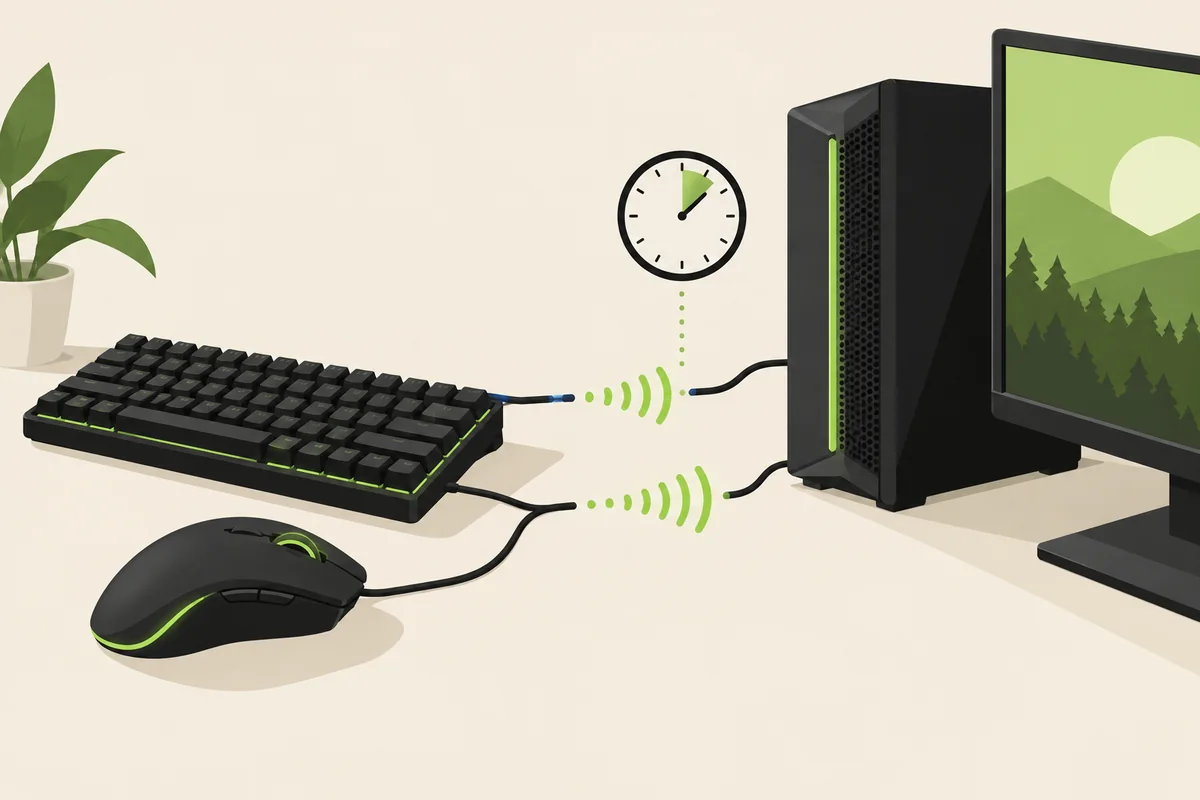
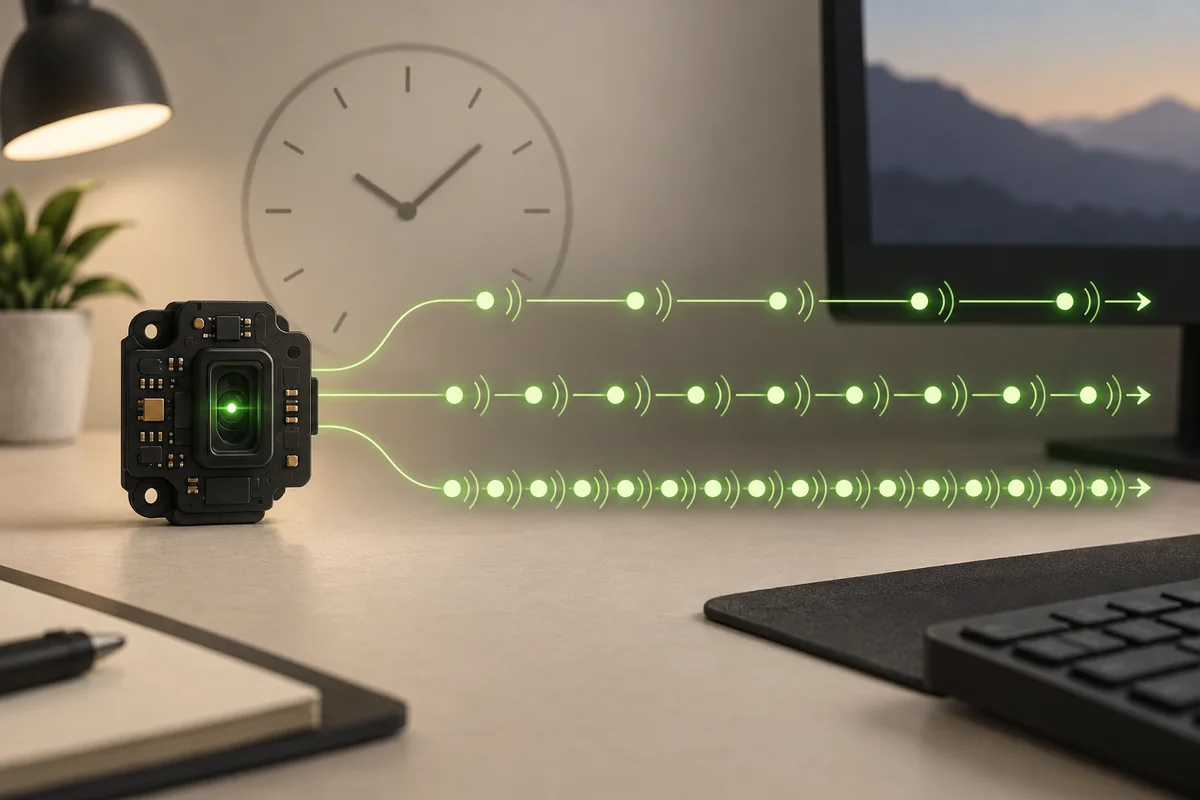
These editorial illustrations explain the timing idea. They are not screenshots of Synapse and do not prove that a particular Razer model supports a specific maximum.
Reports travel from device to systemEditorial illustration. The actual control and limit come from the exact device support entry.Site editorial illustrationHz changes the spacing between reportsUse the interval explanation to understand the menu; do not treat it as a benchmark result.Supported-device guidance
Start with the measurement
What does polling rate mean in Razer Synapse?
Polling rate is a reporting interval. At 125 Hz, a device can report roughly every 8 milliseconds; at 500 Hz, roughly every 2 milliseconds; at 1,000 Hz, roughly every 1 millisecond. Higher modes such as 2,000, 4,000, or 8,000 Hz shorten the nominal interval again, but the number on the menu is not a promise that every application will process every report.
Polling rate is different from DPI or sensitivity. DPI changes how far a pointer moves for a measured physical movement. Polling rate changes how frequently the device sends its current state. A high rate cannot correct a poor sensor surface, an unstable wireless link, a busy USB hub, or an application that is already limited elsewhere.
Before opening the menu
Check the device, firmware, and connection first
Read the full product name and model number from the device, packaging, or Synapse entry. A wireless mouse can have a separate receiver, dock, or HyperPolling accessory. A keyboard may expose a different setting from a mouse, and a firmware update can change which choices appear. Start with the Razer support entry for the exact model instead of copying a value from a similar product.
Save the current profile, DPI stages, button assignments, macros, and lighting before testing. If the device is wireless, charge it and note whether the change is being made over Bluetooth, a receiver, or a cable. For diagnosis, a direct cable or receiver connection removes one variable; it does not prove that the final wireless setup has the same behavior.
Use the device page
How to change polling rate in Razer Synapse
Open Synapse and select the connected device rather than a global profile screen. Look for a performance, sensor, or polling-rate control. The wording and location can differ between Synapse releases and device families, so an absent menu is a compatibility clue, not a reason to install an unofficial utility. If the setting is exposed, note the current value before selecting the next supported option.
Apply one change, wait for the device to reconnect if Synapse requests it, and perform the same short test each time. Move the pointer across a fixed distance, click a few times, type a repeatable phrase, or use a training range that makes stutter easy to notice. Do not change DPI, game sensitivity, USB port, firmware, and polling rate in the same test; you will not know which change helped or hurt.
Choose for the whole setup
Which polling rate should you use?
There is no universal best polling rate. Start at 1,000 Hz when the device supports it, then compare a higher mode only if your game, display refresh rate, CPU headroom, and battery budget make the experiment worthwhile. A higher setting can be sensible for a fast competitive setup, but a stable 500 or 1,000 Hz result is better than a nominally faster mode that causes hitching or disconnects.
For wireless hardware, watch battery behavior over a normal session rather than judging the first five minutes. For a keyboard, test sustained typing and rapid repeated keys as well as a game. If a title becomes less smooth, the cursor feels inconsistent, or the device reconnects, return to the baseline and isolate the cause before blaming the game or changing Windows power settings.
When the value will not stick
Fix a Razer Synapse polling rate that resets or disappears
First confirm that the device supports the selected mode and that Synapse is editing the profile currently used by the hardware. Reopen the device page, switch back to the last known-good value, and restart Synapse only after the profile is saved. If the value returns after a reboot, check whether a linked game profile, onboard memory mode, or a second Razer utility is replacing it.
If settings or profiles are missing more broadly, use the profiles guide to check export, import, and profile links. If Synapse itself is not running correctly, use the service guide or the not-opening guide. Keep the polling-rate issue separate from a firmware write failure; the firmware guide covers the safer evidence to collect before retrying hardware updates.
Keep the result measurable
How to validate a polling-rate change
A setting is useful only when the device remains usable in the work or game that motivated the change. Test the same scene with the same sensitivity, frame cap, display mode, and connection. Look for consistent tracking, normal clicks, stable key repeats, and no new reconnect or CPU symptoms. If you use a third-party polling tester, treat it as an observation tool rather than an official compatibility verdict.
Do not promise a visible latency improvement from the number alone. The complete path includes sensor timing, USB scheduling, wireless transmission, the operating system, game input handling, frame timing, and display scanout. A small theoretical interval can disappear inside those other stages. Keep a short note of the baseline, selected rate, game or application, connection, and outcome so you can reverse the change without guessing.
Done means stable
Polling-rate change completion checklist
Consider the change complete only when the value is supported, the active profile keeps it, and the whole setup remains predictable.
1
The model is identified
The device, receiver, firmware, and connection are known before comparing values.
2
The profile is protected
DPI, macros, assignments, lighting, and the previous polling value are backed up or recorded.
3
One variable changed
The rate was changed without changing sensitivity, firmware, port, and game settings at the same time.
4
The result survives
The selected value remains after the relevant profile, Synapse restart, or reconnect check.
The best Razer Synapse polling rate is the highest supported value that stays stable for your device and workload. If the menu, profile, or hardware result is uncertain, keep the baseline and preserve the evidence.
Polling rate is how often a compatible device reports its current input state to the computer. A 1,000 Hz setting represents a nominal 1 ms interval, but the complete system may add other timing limits.
How do I change polling rate in Razer Synapse?
Select the exact connected device, open its performance or sensor controls, choose a supported value, apply it, and repeat a controlled test. The menu and maximum depend on the model and firmware.
Is 1,000 Hz better than 500 Hz for every Razer mouse?
No. 1,000 Hz is a useful baseline, not a universal verdict. Choose the value that stays smooth and stable for your game, connection, CPU headroom, display, and battery budget.
Why can I not select a higher polling rate?
The device, firmware, receiver, or current connection may not support that mode. Check the exact Razer support entry and do not install an unofficial tool to force a hidden value.